

RightSignature For SugarAI allows you to send e-sign contracts for electronic signature with RightSignature services and track your documents anytime, anywhere within minutes.
Signed Copies and Troubleshooting
Getting the signed copy
When a document is Signed (1), the signed PDF is saved as a SugarAI Document (2) named Signed: …. It is linked to the RightSignature record and to the Account, Contact, Lead or Opportunity it was sent from, so you can open and download it from either.
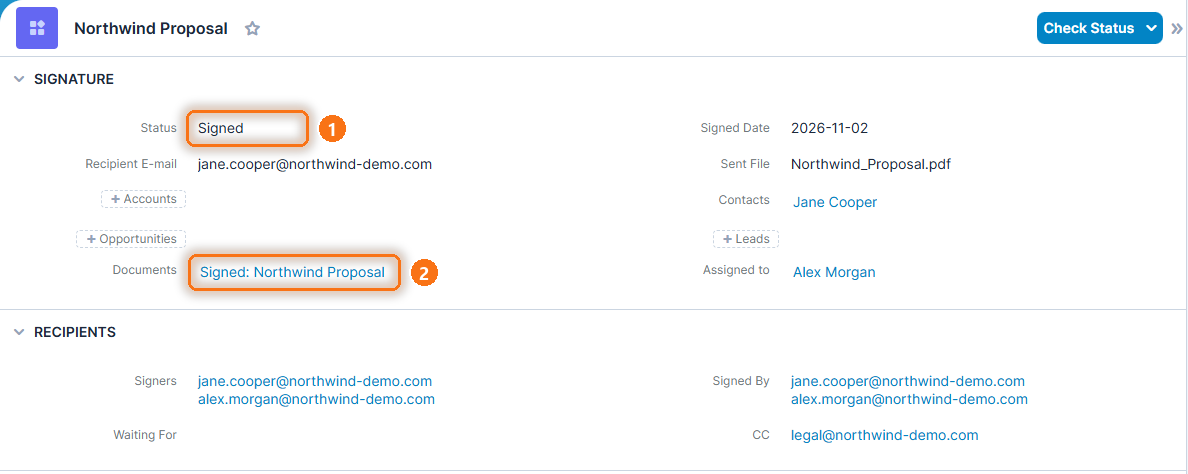
The Recipients panel shows every signer, who has signed and who received a copy.
Troubleshooting
Test Connection says the token was rejected (HTTP 401). The token was mistyped, revoked, or its API key is not approved yet. Copy the Private API Token again from the API settings in RightSignature, not the Client ID or Client Secret.
Test Connection says the account is not allowed to use the API (HTTP 403). The RightSignature plan has no API access. Upgrade to ShareFile Premium or Industry Advantage, or ask RightSignature support.
A send fails with "rate limit" (HTTP 429). RightSignature allows 60 sends per minute and 240 per hour. Wait a moment and send again.
Test Connection says RightSignature could not be reached. The SugarAI server needs outbound HTTPS to api.rightsignature.com. If you use a proxy, check it in Admin > System Settings.
Statuses do not change on their own. Make sure SugarAI's cron (cron.php) runs and that the scheduler RightSignature: Check document status is active in Admin > Scheduler. You can always use Check Status in the meantime.
"Send PDF via RightSignature" lists no templates. Create a published PDF Manager template whose module matches the record (Accounts, Contacts, Leads or Opportunities).
"Send RightSignature Template" lists no templates. Create a reusable template in RightSignature. The list shows the templates of the RightSignature account whose token is used.
The RightSignature options are missing from the actions menu. Run Admin > Repair > Quick Repair and Rebuild, then refresh the browser.
A screen is blank or shows an error. Check sugarcrm.log in the SugarAI root folder for lines starting with [RightSignature], and the web server's PHP error log. Send those lines to support.
Upgrading and uninstalling
Upgrading from 1.x. Install 2.0.0 in Module Loader. Your sent documents and the saved token are kept. If Module Loader asks you to, uninstall 1.x first and choose to keep its data. Then open Admin > RightSignature Settings and click Test Connection.
Uninstalling. In Admin > Module Loader, click Uninstall next to RightSignature for Sugar and choose whether to keep the RightSignature data. Uninstalling removes the saved RightSignature settings and the scheduler. Signed PDFs saved as SugarAI Documents are kept.
Support
Contact Techloyce support with your SugarAI version, the add-on version (2.0.0) and any [RightSignature] lines from sugarcrm.log.
For more info: Click Here | Partner Info
 Saving Comment...

