RightSignature For SugarAI for SugarCRM allows you to send e-sign contracts for electronic signature with RightSignature services and track your documents anytime, anywhere within minutes.
Create and Send SugarRightSign
There are three ways to send a document for signature: upload a file, fill a SugarAI PDF Manager template with the record's data, or use a reusable RightSignature template.
1. Send a document
- Open an Account, Contact, Lead or Opportunity.
- Open the actions menu next to Edit and choose Send Document via RightSignature.
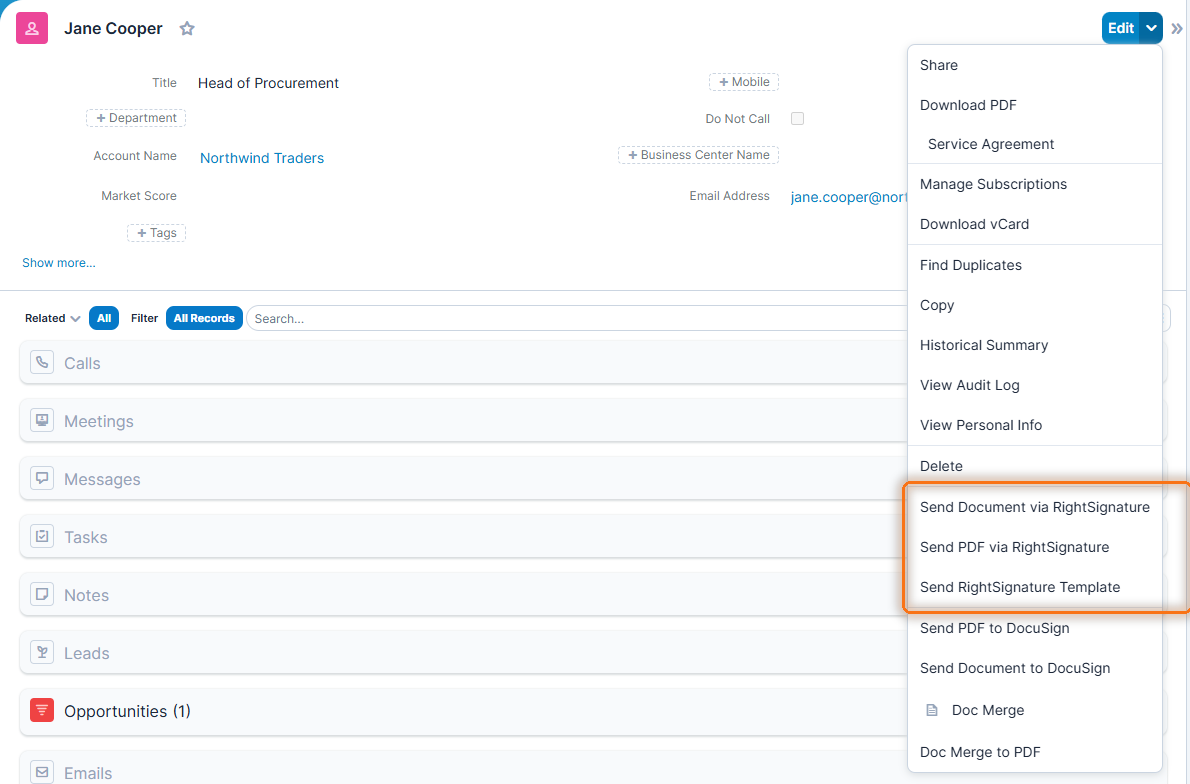
- Choose or drag in the file and check the Document name (1).
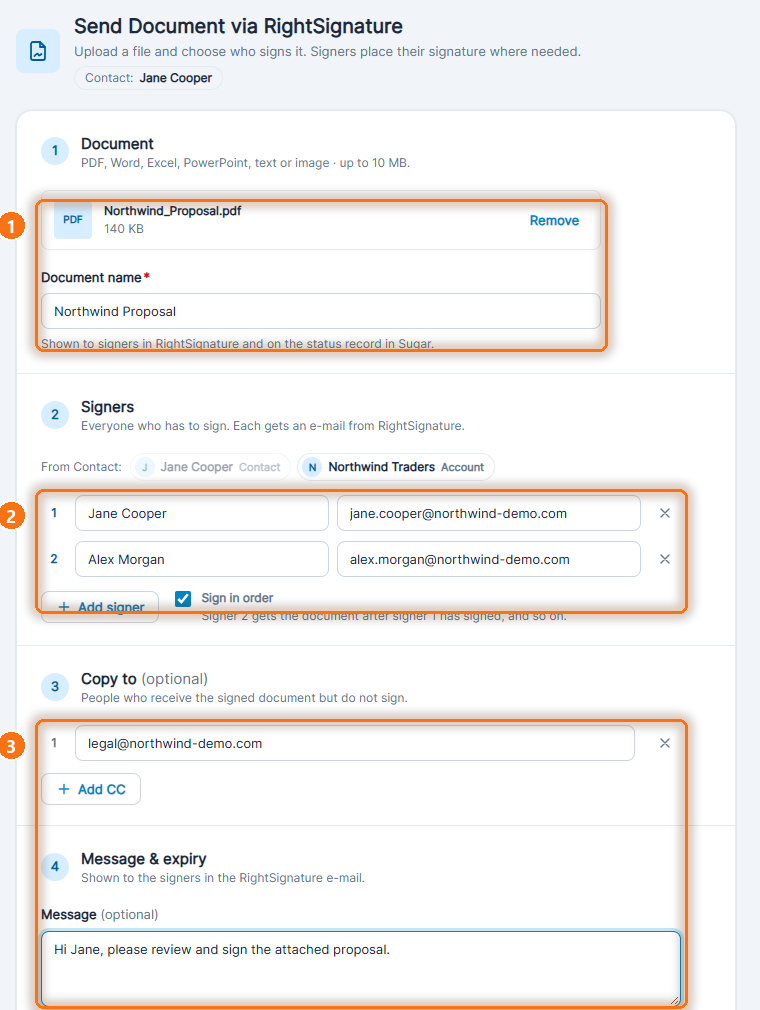
- Check the signers (2). The first signer is filled in from the record. Click a suggestion above the list to add a related person, or Add signer to type one. Tick Sign in order if signer 2 should only get the document after signer 1 has signed.
- Optionally add people under Copy to, who receive the signed document but do not sign, and a Message and Expires after (3).
- Click Send for signature.
SugarAI returns to the record and confirms that the document was sent. Each signer receives an e-mail from RightSignature, opens the document and signs. A RightSignature record is created and appears in the record's RightSignature subpanel.
2. Send a PDF template
Use a PDF template to send documents that are filled in with the record's data, such as agreements, quotes and order forms.
Create the template (once)
- Go to Admin > PDF Manager and click Create.
- Set Module to Accounts, Contacts, Leads or Opportunities, enter a name and write the document.
- Insert record fields with Insert Field, or type the placeholders yourself:
{$fields.field_name}inserts a field of the record, for example{$fields.first_name}or{$fields.name};{$fields.link.field_name}inserts a field of a related record, for example{$fields.accounts.name};{=TODAY()}inserts today's date.
- Set Published to Yes and save.
Send it
- Open a record of the template's module and choose Send PDF via RightSignature from the actions menu.
- Select the PDF template (1), check the signers and click Send for signature (2).
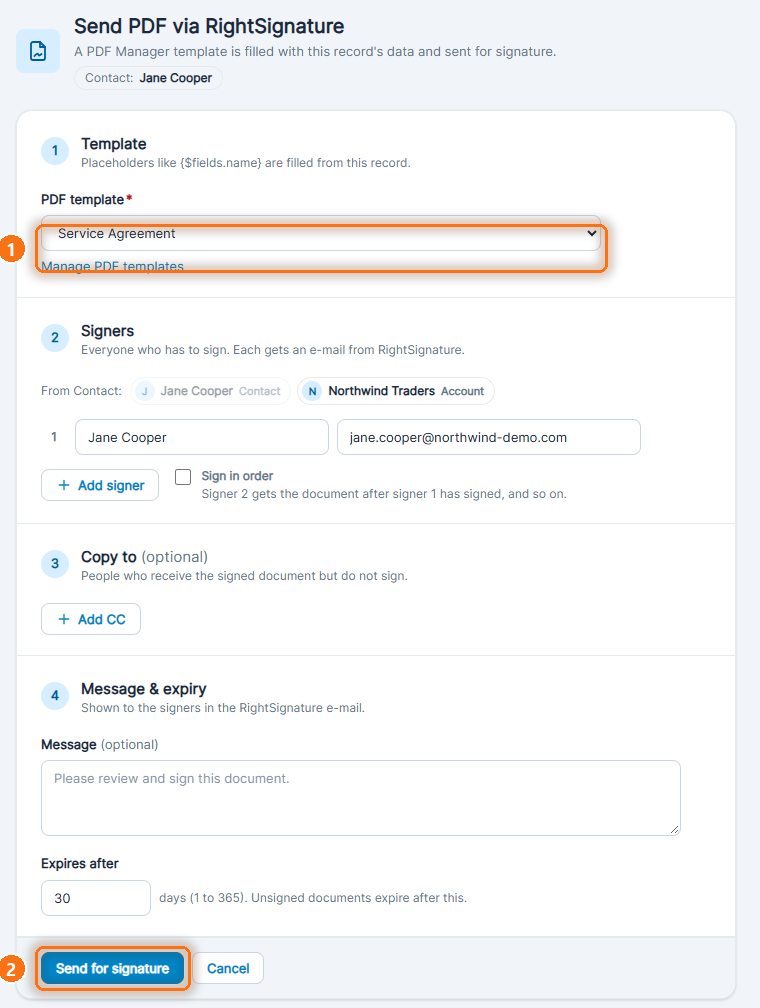
SugarAI fills the template with the record's data, creates the PDF and sends it for signature.
3. Send a RightSignature template
RightSignature reusable templates already have their signature fields placed, so signers can sign straight away. Create and edit them in RightSignature.
- Open a record and choose Send RightSignature Template from the actions menu.
- Pick a template. Type in the search box to find one quickly.
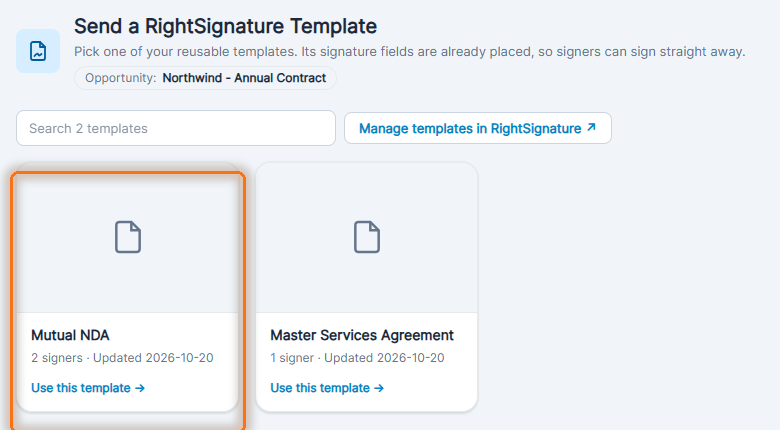
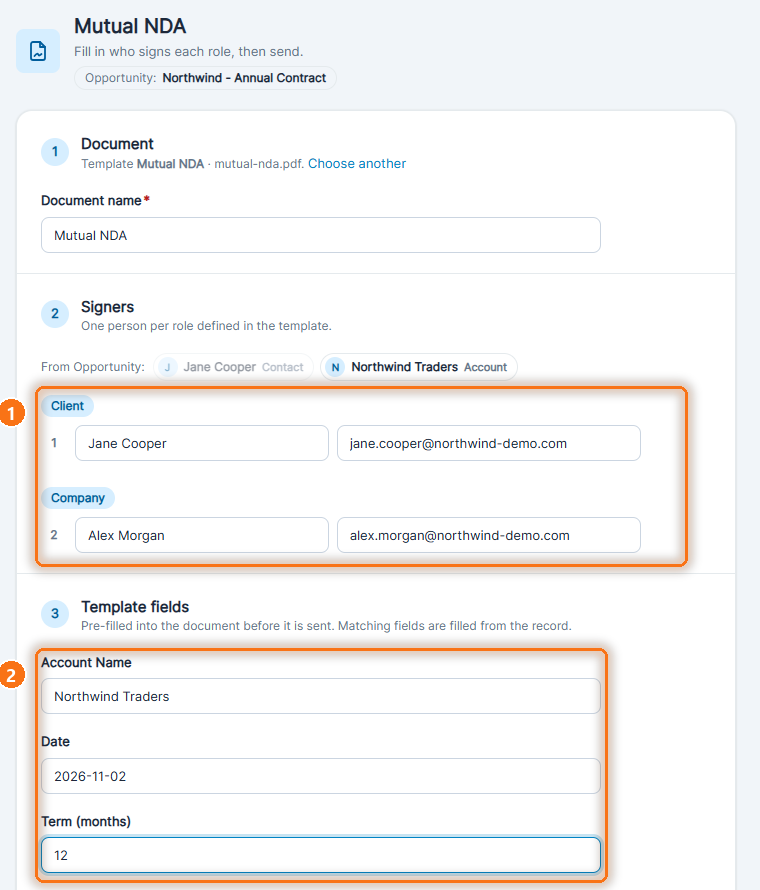
- Fill in who signs each role of the template (1). SugarAI fills the roles with people from the record.
- Check the Template fields (2). Fields whose names match a field of the record, such as Account Name, are filled in automatically, and a field named Date or Today gets today's date.
- Click Send for signature.
You can also start from the RightSignature module with the Send RightSignature Template and Send Document buttons, without opening a record first.
 Saving Comment...