Quickly see and review the Status of ActiveCampaign marketing emails along with their Lead Scores from your SugarAI. The SugarActiveCampaign add-on helps users effectively reach contacts via marketing efforts from ActiveCampaign and view them in Account, Leads, Contacts and Target List modules on SugarAI side. It supports on-premise deployments.
User Guide
This guide picks up after the add-on is installed, licensed and connected. See the Installation Guide for those steps.
1. Choose what to sync
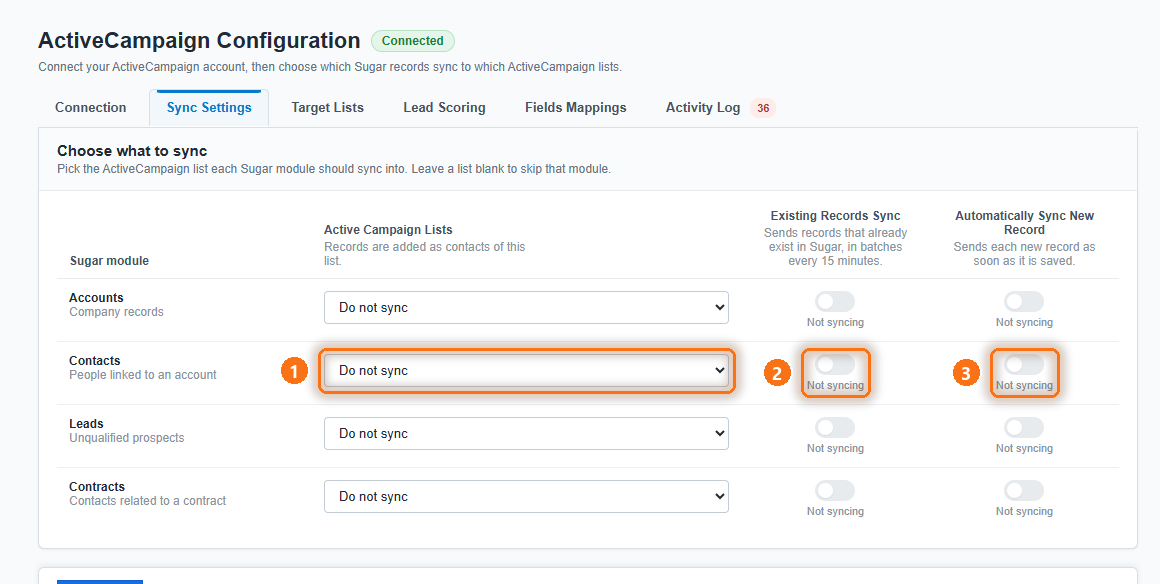
Open the Sync Settings tab. Each row is a SugarAI module:
| Module | What is sent to ActiveCampaign |
|---|---|
| Accounts | Company records |
| Contacts | People linked to an account |
| Leads | Unqualified prospects |
| Contracts | Contacts related to a contract |
For each module you want to sync:
- Pick the ActiveCampaign list (1). Records are added to this list as ActiveCampaign contacts. Leave the list blank to skip the module.
- Turn on Sync existing records (2) to send the records that are already in SugarAI. They are sent in batches every 15 minutes.
- Turn on Automatically sync new records (3) to send each new or changed record as soon as it is saved.
2. Map target lists
This step is optional. Open the Target Lists tab to send the members of SugarAI target lists to ActiveCampaign lists.
- Click Add mapping.
- Choose the SugarAI target list (1).
- Tick one or more ActiveCampaign lists (2). Members of the target list are added to every list you tick.
- Turn on Sync existing records and Automatically sync new records (3) as needed.
Add a row for each target list. Click the remove button at the end of a row to delete a mapping.
3. Turn on lead scoring
This step is optional. Open the Lead Scoring tab and turn on Import lead score values from ActiveCampaign if you use lead scoring in ActiveCampaign.
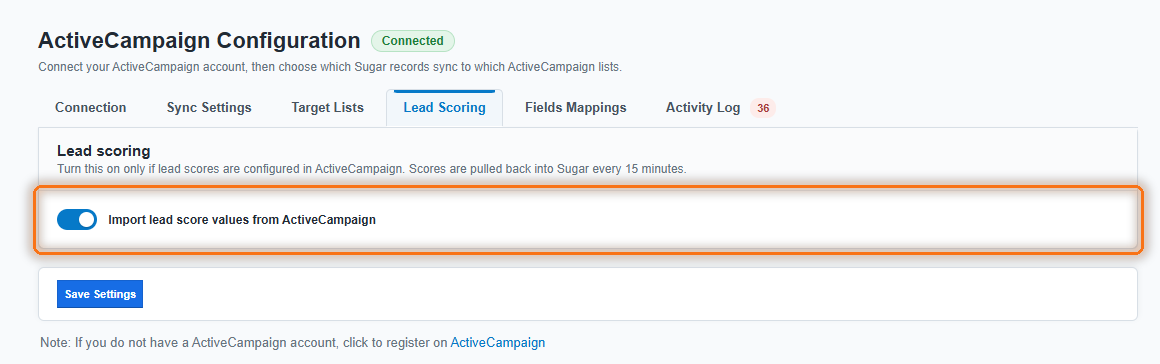
Scores are pulled back into SugarAI every 15 minutes. Leave it off if lead scores are not set up in ActiveCampaign.
4. Save the settings
Click Save Settings at the bottom of the screen. A banner reminds you if you have unsaved changes.
Saving the settings for the first time also:
- adds a webhook in ActiveCampaign, so that campaign sends, opens and clicks are reported to SugarAI;
- adds two hidden custom fields in ActiveCampaign, Source and CRM Record ID, which link each ActiveCampaign contact to its SugarAI record;
- creates the SugarAI schedulers for the modules where Sync existing records is on, and for lead scores.
The schedulers are listed in Admin > Schedulers and run every 15 minutes.
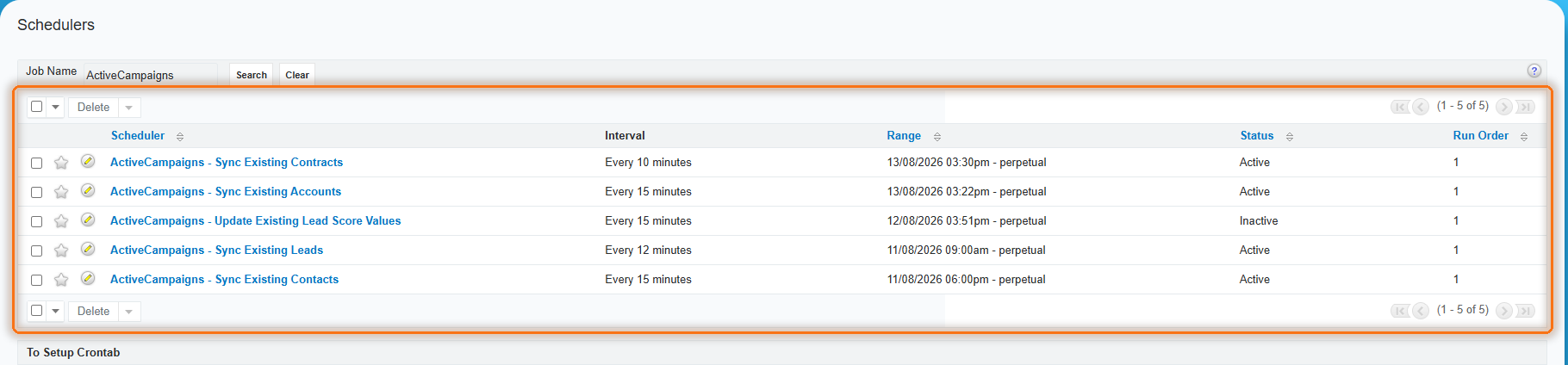
| Scheduler | Job |
|---|---|
| ActiveCampaigns - Sync Existing Accounts | Sends existing Accounts |
| ActiveCampaigns - Sync Existing Contacts | Sends existing Contacts |
| ActiveCampaigns - Sync Existing Leads | Sends existing Leads |
| ActiveCampaigns - Sync Existing Contracts | Sends existing Contracts |
| ActiveCampaigns - Update Existing Lead Score Values | Imports lead scores from ActiveCampaign |
5. Map fields
Open the Fields Mappings tab to choose which SugarAI field fills each ActiveCampaign field.
- Choose the module at the top: Contacts, Leads, Accounts or Contracts (1).
- Email is always mapped. For each other ActiveCampaign field, pick the SugarAI field (2). Click Add field to map another field.
- Click Save field mappings (3). Each module is saved separately.
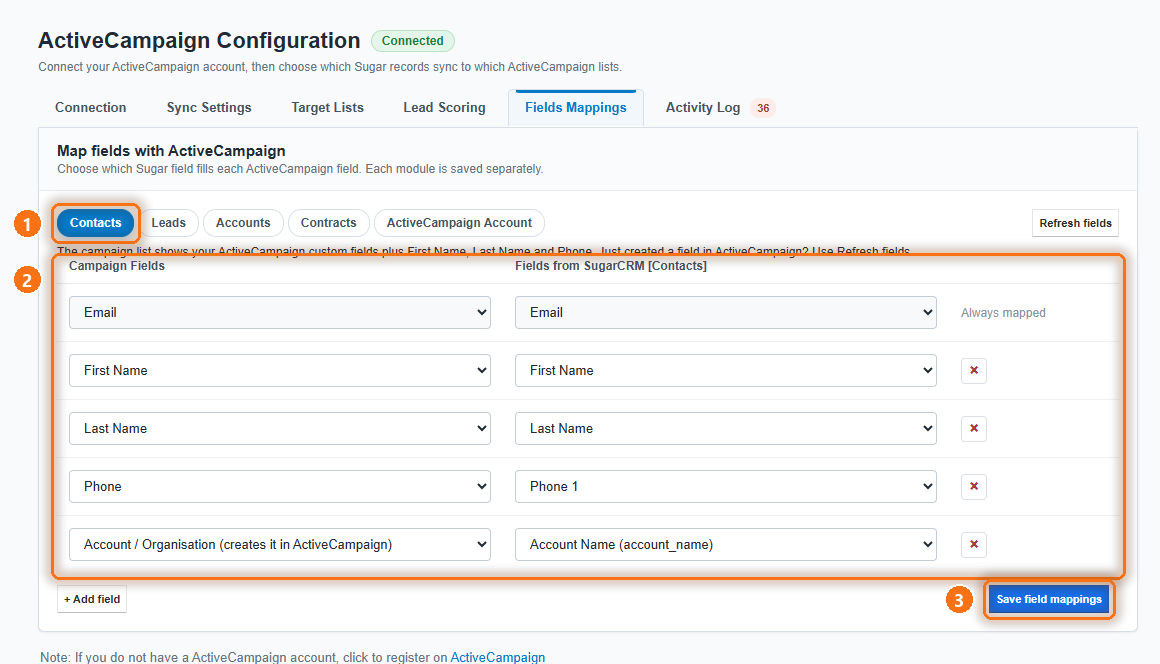
The ActiveCampaign field list shows First Name, Last Name, Phone and your ActiveCampaign custom fields. Just created a field in ActiveCampaign? Click Refresh fields.
Tip: Map Account / Organisation to send the record's company to ActiveCampaign. The account is created in ActiveCampaign if it doesn't exist yet.
ActiveCampaign account details (optional)
The ActiveCampaign Account tab fills in the ActiveCampaign account created by the Account / Organisation mapping, such as its URL, phone and address.
- For each ActiveCampaign account field, pick the SugarAI Account field that fills it.
- Click Save field mappings.
The values come from the SugarAI Account linked to the record being synced. Empty SugarAI fields are skipped, so a blank field in SugarAI never wipes a value typed in ActiveCampaign.
6. How records sync
| In SugarAI | In ActiveCampaign |
|---|---|
| Existing record, with Sync existing records on | Added to the module's list by the scheduler, in batches every 15 minutes |
| New record, with Automatically sync new records on | Added to the module's list as soon as it is saved |
| Record updated | The contact is updated with the mapped fields |
| Account, Contact, Lead or Contract deleted | The contact is deleted |
| Member linked to a mapped target list | Added to each mapped ActiveCampaign list |
| Member unlinked from a mapped target list | Removed from those ActiveCampaign lists |
A record needs an e-mail address to be sent to ActiveCampaign. Records without one are skipped and listed in the Activity Log.
7. Campaign activity and lead scores in SugarAI
When you send a campaign in ActiveCampaign, SugarAI records what happens to each synced recipient. Open an Account, Contact or Lead and look at the ActiveCampaigns subpanel.
| Status | Meaning |
|---|---|
| Sent | ActiveCampaign sent the campaign to this recipient. |
| Opened | The recipient opened the e-mail. |
| Clicked | The recipient clicked a link in the e-mail. |
Each entry shows the campaign, the status and the activity date. All entries are also listed in the ActiveCampaigns module, where you can search, filter and report on them.
If lead scoring is on, the AC Lead Score field on the Account, Contact or Lead shows the record's score from ActiveCampaign. It is updated every 15 minutes when the score changes. Add the field to your record and list views in Admin > Studio if it isn't shown.
8. Activity Log
The Activity Log tab shows what the add-on has done recently, newest first. Use it to see why a record did or did not reach ActiveCampaign.
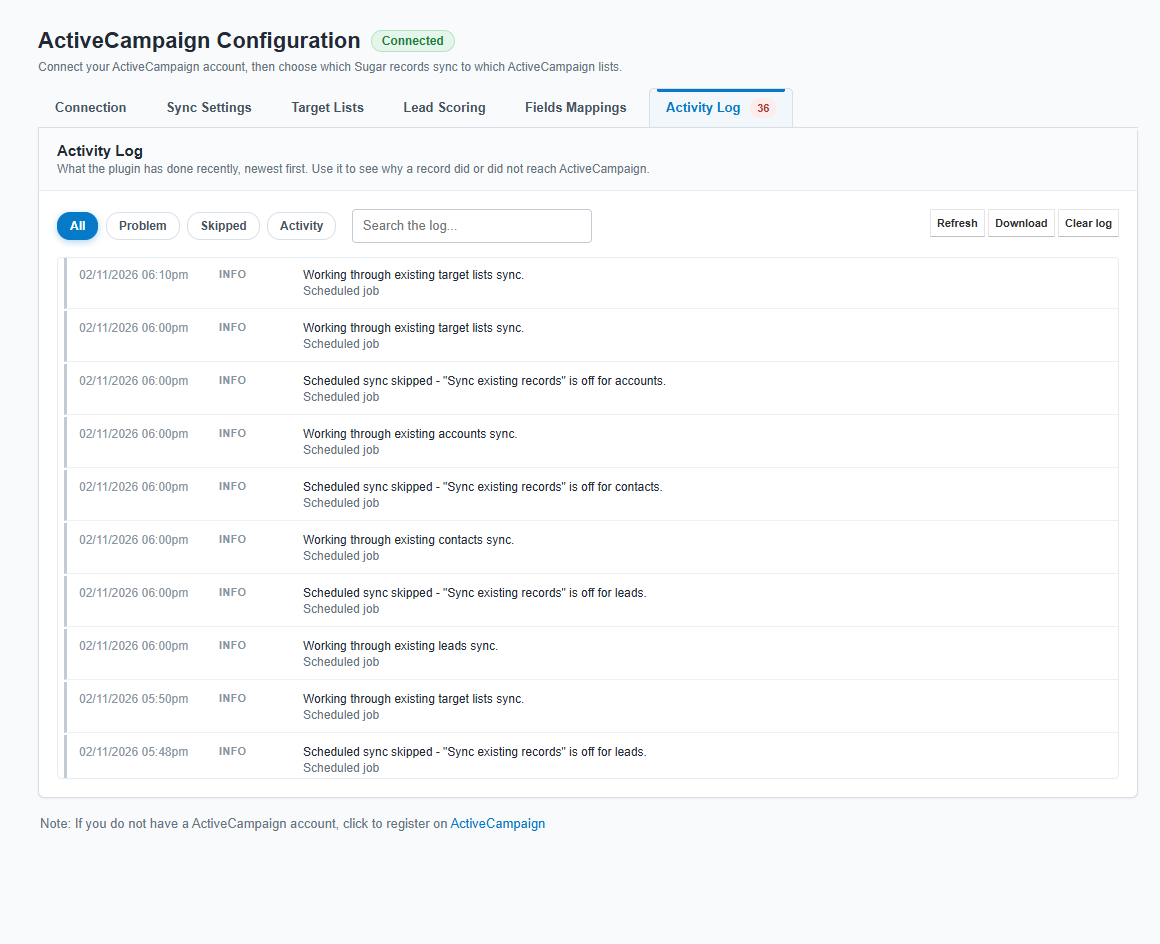
- Filter by All, Problem, Skipped or Activity, or type in Search the log. The number on the tab is the count of problems.
- Click an entry's Technical details to see the full message.
- Refresh loads new entries, Download saves the log as ActiveCampaign.log, and Clear log deletes every entry.
9. Troubleshooting
Test Connection fails. Copy the API URL and API Key again from Settings > Developer in ActiveCampaign. The API URL looks like https://youraccount.api-us1.com, not the address of your ActiveCampaign login page.
The Activity Log shows an ActiveCampaign error (HTTP 402). ActiveCampaign refuses API calls because the account is not active, for example when a trial has ended. Reactivate the ActiveCampaign account; syncing continues on the next scheduler run.
The other tabs say Connect to ActiveCampaign first. Authenticate on the Connection tab first.
Save Settings says it failed to create the webhook or the custom fields in ActiveCampaign. The API user needs permission to manage webhooks and custom fields in ActiveCampaign. Authenticate again and save. The message tells you which step failed, and the Activity Log has the details.
Existing records are not synced. Check that the module's scheduler is Active in Admin > Schedulers and that SugarAI's cron is running. The scheduler runs every 15 minutes and sends records in batches of 100.
A record was not sent to ActiveCampaign. Search for it in the Activity Log. The most common cause is a missing e-mail address, or a module with no ActiveCampaign list selected on Sync Settings.
Fields Mappings says no ActiveCampaign fields could be loaded. Check the connection on the Connection tab, then reopen the tab.
No campaign activity appears in SugarAI. ActiveCampaign must be able to reach your SugarAI site over HTTPS. Sites on a local network or behind a firewall don't receive campaign updates. In ActiveCampaign, check Settings > Developer > Webhooks for the webhook that ends in /rest/v11_4/TL_ActiveCampaigns/CampaignStats.
The ActiveCampaigns subpanel or AC Lead Score field is missing. Run Admin > Repair > Quick Repair and Rebuild, then refresh the browser.
Support
Contact Techloyce support with your SugarAI version, the add-on version (3.2.8) and the downloaded Activity Log.
For more info: Techloyce SugarCRM ActiveCampaign Integration | Partner Info
 Saving Comment...