

Quickly see and review the Status of ActiveCampaign marketing emails along with their Lead Scores from your SugarCRM. The SugarActiveCampaign add-on helps users effectively reach contacts via marketing efforts from ActiveCampaign and view them in Account, Leads, Contacts and Target List modules on SugarCRM side. It supports on-premise deployments.
ActiveCampaign for SugarAI
Version 3.2.8 · SugarAI 12, 13, 14, 25 and 26 · By Techloyce
Is ActiveCampaign for SugarAI Right for You?
- Do you build e-mail lists in ActiveCampaign by exporting and importing CSV files from SugarAI?
- Would your sales team like to see who opened or clicked your last campaign without leaving SugarAI?
- Do you want ActiveCampaign lead scores next to your Accounts, Contacts and Leads?
ActiveCampaign for SugarAI keeps your SugarAI records and your ActiveCampaign lists in step. Accounts, Contacts, Leads, Contracts and Target List members are sent to the ActiveCampaign lists you choose, kept up to date as they change in SugarAI, and campaign activity and lead scores come back to SugarAI.
Overview Video
How It Works
- Connect SugarAI to ActiveCampaign with your API URL and API Key.
- Choose which ActiveCampaign list each SugarAI module, and each SugarAI target list, syncs into.
- Map the SugarAI fields that fill each ActiveCampaign field.
- Sync: existing records are sent in batches, and new and changed records are sent as soon as they are saved.
- Follow up in SugarAI: campaign sends, opens and clicks, and lead scores, are shown on each record.
Features
- Sync Accounts, Contacts, Leads and Contracts to the ActiveCampaign list of your choice.
- Sync existing records in the background (every 15 minutes) and new records the moment they are saved.
- Updates in SugarAI are sent to ActiveCampaign; deleting a record in SugarAI deletes it in ActiveCampaign.
- Map SugarAI target lists to one or more ActiveCampaign lists. Linking or unlinking a member in SugarAI adds or removes it in ActiveCampaign.
- Field mapping per module, including your ActiveCampaign custom fields.
- Create and fill in ActiveCampaign accounts from the SugarAI Account linked to a record.
- Campaign activity (Sent, Opened, Clicked) recorded on the Account, Contact or Lead.
- Lead scores from ActiveCampaign saved in an AC Lead Score field on Accounts, Contacts and Leads.
- An Activity Log that shows what was synced, what was skipped and why.
What's New in Version 3.2.8
- One settings screen with tabs: Connection, Sync Settings, Target Lists, Lead Scoring, Field Mappings and Activity Log. Field mapping is no longer a separate page.
- Contracts can now be synced, like Accounts, Contacts and Leads.
- ActiveCampaign Account mapping: fill in the ActiveCampaign account's details (URL, phone, address and more) from the linked SugarAI Account.
- Activity Log with filters, search, download and clear, so you can see why a record did or did not reach ActiveCampaign.
- Supports SugarAI 12, 13, 14, 25 and 26, and passes SugarAI's package scanner.
- Fixes for field mapping and for syncing ActiveCampaign accounts.
Requirements
- SugarAI 12.x, 13.x, 14.x, 25.x or 26.x: Professional, Corporate, Enterprise or Ultimate.
- A SugarAI administrator account to install and set up the add-on.
- An ActiveCampaign account with API access, and at least one list.
- SugarAI's cron (scheduler) running, for syncing existing records and lead scores.
- For campaign activity in SugarAI: your SugarAI site must be reachable from the internet over HTTPS, so that ActiveCampaign can send it updates.
- A license key for the add-on.
Getting Started
Setup takes about 10 minutes and is done once by a SugarAI administrator.
- Install the add-on
- Activate your license
- Connect to ActiveCampaign
- Choose what to sync
- Map target lists
- Turn on lead scoring
- Save the settings
- Map fields
- How records sync
- Campaign activity and lead scores in SugarAI
- Activity Log
- Troubleshooting
- Upgrading and uninstalling
1. Install the add-on
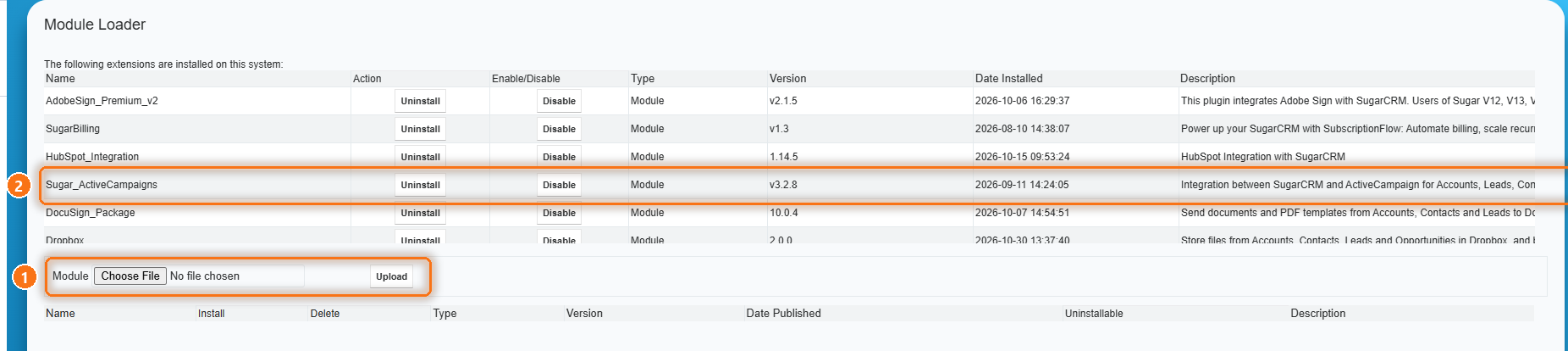
- In SugarAI, open Admin > Module Loader.
- Click Choose File, select
Sugar_ActiveCampaigns_v3.2.8.zipand click Upload (1). - Click Install next to the uploaded package, accept the license and finish the installation.
When the installation is finished, the package is listed as Sugar_ActiveCampaigns v3.2.8 (2).
The installation:
- creates the ActiveCampaigns module, which stores campaign activity;
- adds an ActiveCampaigns subpanel to Accounts, Contacts and Leads;
- adds an AC Lead Score field to Accounts, Contacts and Leads;
- adds the scheduler jobs used to sync existing records and lead scores.
The Admin page now has an ActiveCampaign Configuration section with License Validation and ActiveCampaign Api Configuration.

2. Activate your license
- Go to Admin, and under ActiveCampaign Configuration click License Validation.
- Paste your license key (1) and click Validate (2).
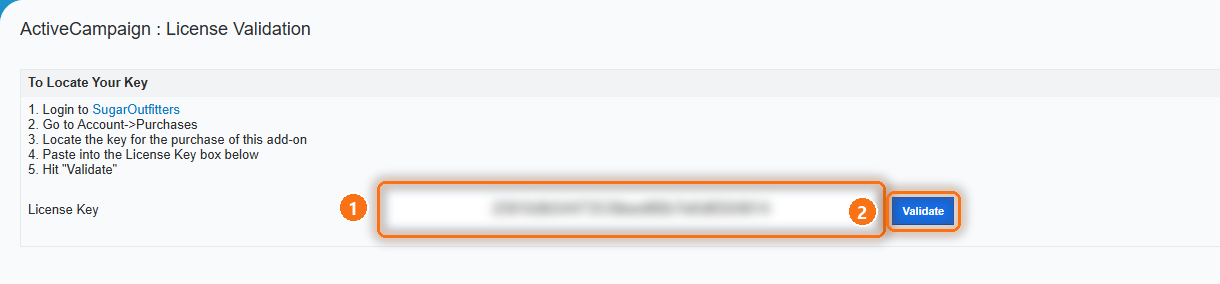
You can find your key in your SugarOutfitters account under Purchases. Until the license is validated, the configuration screen sends you back to this page.
3. Connect to ActiveCampaign
Go to Admin, and under ActiveCampaign Configuration click ActiveCampaign Api Configuration. The badge next to the title shows whether SugarAI is connected. The other tabs stay locked until the connection works.
- In ActiveCampaign, open Settings > Developer and copy your API URL and API Key.
- On the Connection tab, paste the API URL (1), for example
https://youraccount.api-us1.com. - Paste the API Key (2). Click Show to check what you pasted.
- Click Test Connection (3).
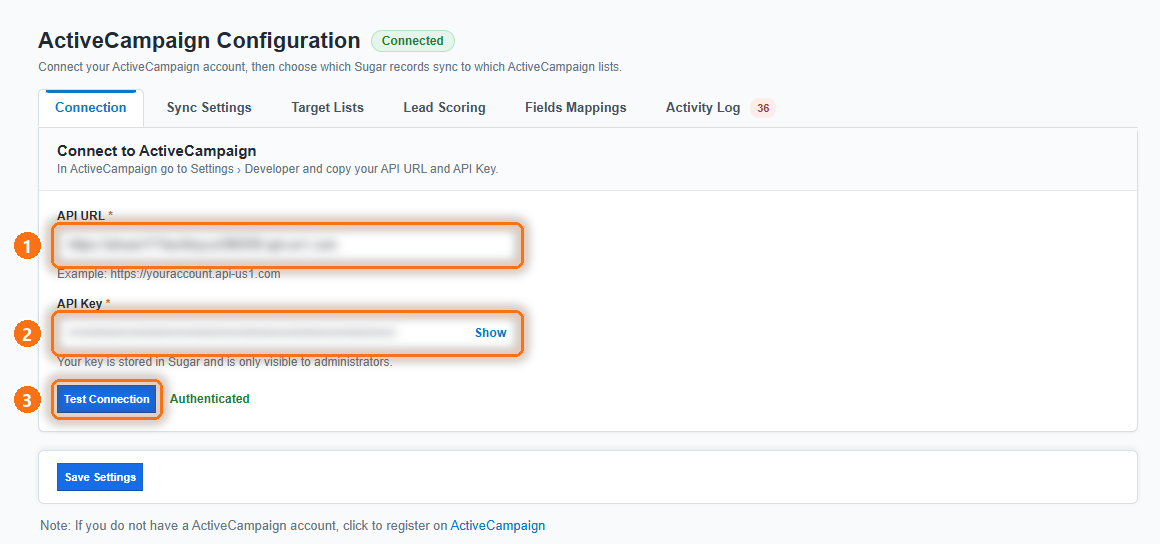
When the credentials are correct, you see Authenticated and the badge shows Connected. The API URL and API Key are saved at this point and are visible only to administrators.
4. Choose what to sync
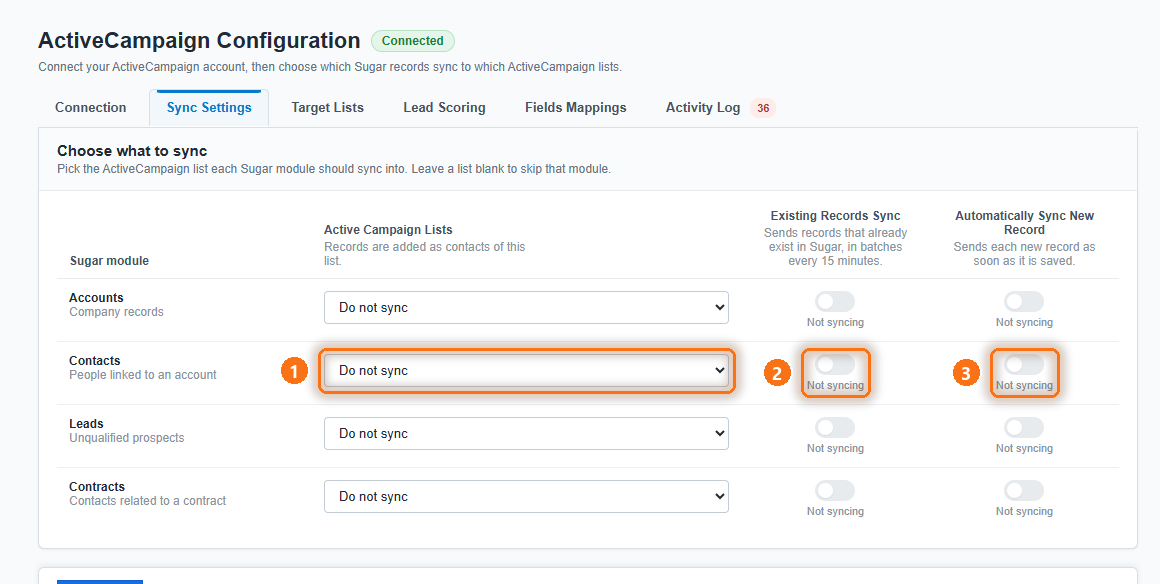
Open the Sync Settings tab. Each row is a SugarAI module:
| Module | What is sent to ActiveCampaign |
|---|---|
| Accounts | Company records |
| Contacts | People linked to an account |
| Leads | Unqualified prospects |
| Contracts | Contacts related to a contract |
For each module you want to sync:
- Pick the ActiveCampaign list (1). Records are added to this list as ActiveCampaign contacts. Leave the list blank to skip the module.
- Turn on Sync existing records (2) to send the records that are already in SugarAI. They are sent in batches every 15 minutes.
- Turn on Automatically sync new records (3) to send each new or changed record as soon as it is saved.
5. Map target lists
This step is optional. Open the Target Lists tab to send the members of SugarAI target lists to ActiveCampaign lists.
- Click Add mapping.
- Choose the SugarAI target list (1).
- Tick one or more ActiveCampaign lists (2). Members of the target list are added to every list you tick.
- Turn on Sync existing records and Automatically sync new records (3) as needed.
Add a row for each target list. Click the remove button at the end of a row to delete a mapping.
6. Turn on lead scoring
This step is optional. Open the Lead Scoring tab and turn on Import lead score values from ActiveCampaign if you use lead scoring in ActiveCampaign.
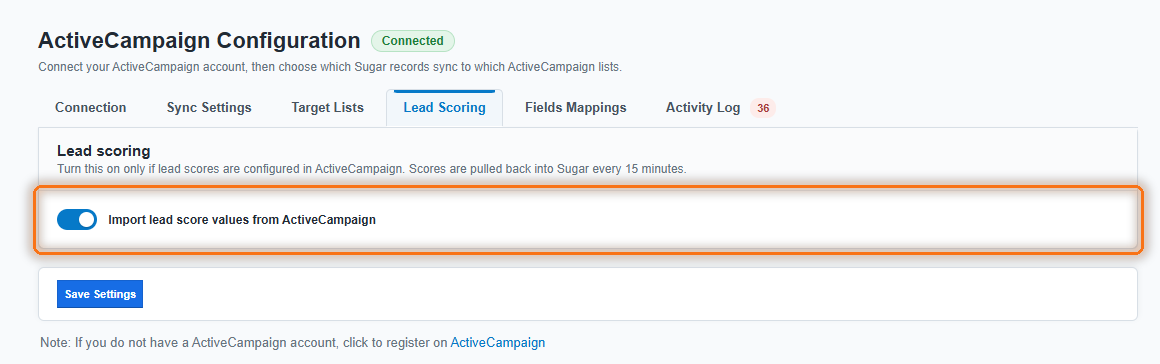
Scores are pulled back into SugarAI every 15 minutes. Leave it off if lead scores are not set up in ActiveCampaign.
7. Save the settings
Click Save Settings at the bottom of the screen. A banner reminds you if you have unsaved changes.
Saving the settings for the first time also:
- adds a webhook in ActiveCampaign, so that campaign sends, opens and clicks are reported to SugarAI;
- adds two hidden custom fields in ActiveCampaign, Source and CRM Record ID, which link each ActiveCampaign contact to its SugarAI record;
- creates the SugarAI schedulers for the modules where Sync existing records is on, and for lead scores.
The schedulers are listed in Admin > Schedulers and run every 15 minutes.
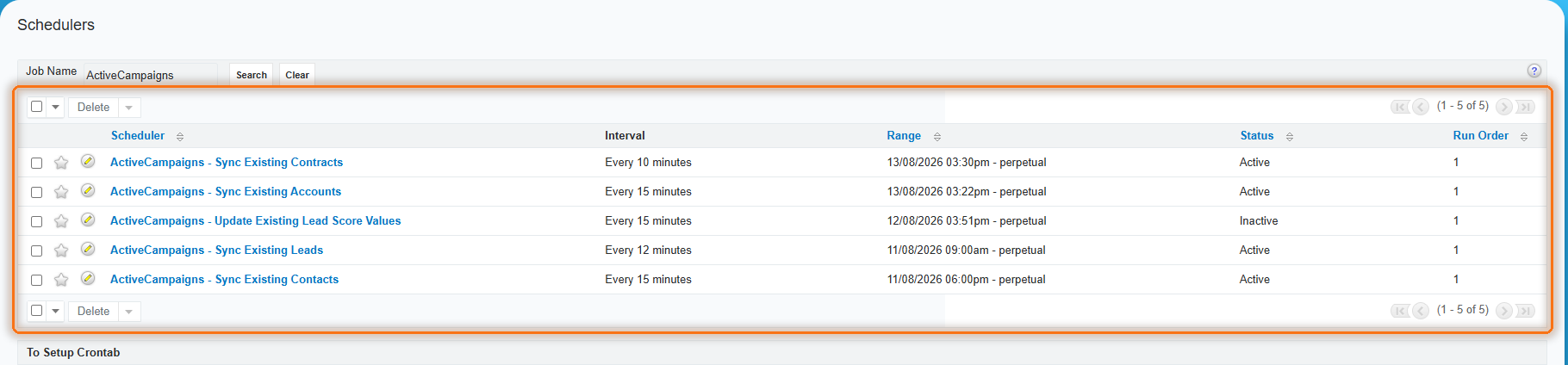
| Scheduler | Job |
|---|---|
| ActiveCampaigns - Sync Existing Accounts | Sends existing Accounts |
| ActiveCampaigns - Sync Existing Contacts | Sends existing Contacts |
| ActiveCampaigns - Sync Existing Leads | Sends existing Leads |
| ActiveCampaigns - Sync Existing Contracts | Sends existing Contracts |
| ActiveCampaigns - Update Existing Lead Score Values | Imports lead scores from ActiveCampaign |
8. Map fields
Open the Fields Mappings tab to choose which SugarAI field fills each ActiveCampaign field.
- Choose the module at the top: Contacts, Leads, Accounts or Contracts (1).
- Email is always mapped. For each other ActiveCampaign field, pick the SugarAI field (2). Click Add field to map another field.
- Click Save field mappings (3). Each module is saved separately.
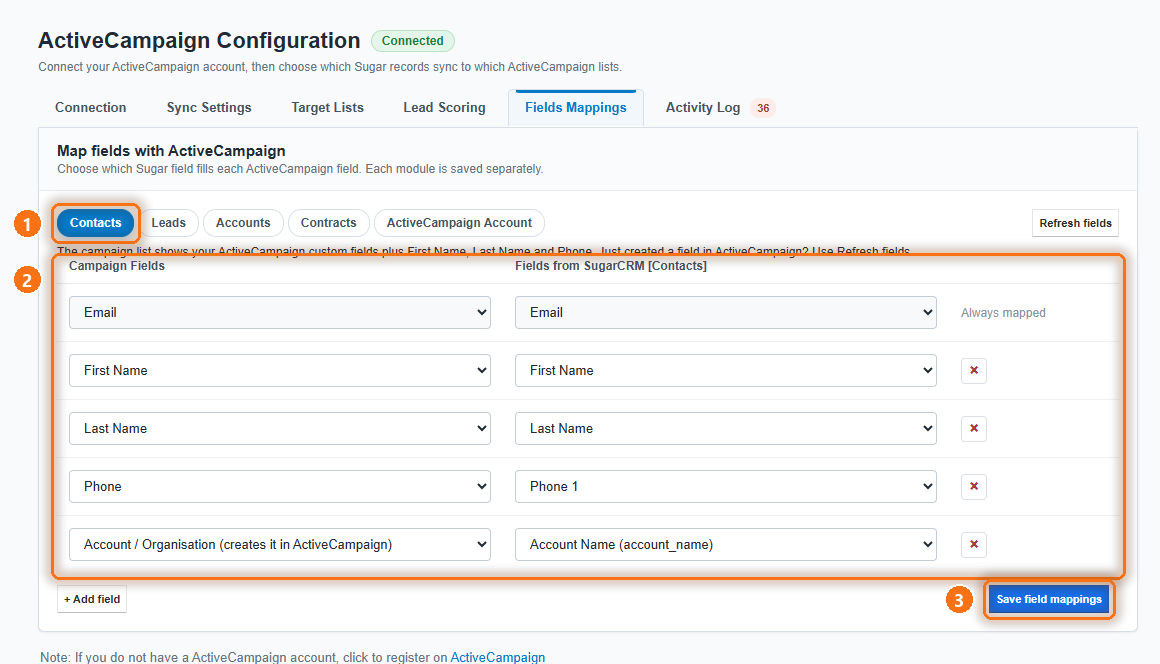
The ActiveCampaign field list shows First Name, Last Name, Phone and your ActiveCampaign custom fields. Just created a field in ActiveCampaign? Click Refresh fields.
Tip: Map Account / Organisation to send the record's company to ActiveCampaign. The account is created in ActiveCampaign if it doesn't exist yet.
ActiveCampaign account details (optional)
The ActiveCampaign Account tab fills in the ActiveCampaign account created by the Account / Organisation mapping, such as its URL, phone and address.
- For each ActiveCampaign account field, pick the SugarAI Account field that fills it.
- Click Save field mappings.
The values come from the SugarAI Account linked to the record being synced. Empty SugarAI fields are skipped, so a blank field in SugarAI never wipes a value typed in ActiveCampaign.
9. How records sync
| In SugarAI | In ActiveCampaign |
|---|---|
| Existing record, with Sync existing records on | Added to the module's list by the scheduler, in batches every 15 minutes |
| New record, with Automatically sync new records on | Added to the module's list as soon as it is saved |
| Record updated | The contact is updated with the mapped fields |
| Account, Contact, Lead or Contract deleted | The contact is deleted |
| Member linked to a mapped target list | Added to each mapped ActiveCampaign list |
| Member unlinked from a mapped target list | Removed from those ActiveCampaign lists |
A record needs an e-mail address to be sent to ActiveCampaign. Records without one are skipped and listed in the Activity Log.
10. Campaign activity and lead scores in SugarAI
When you send a campaign in ActiveCampaign, SugarAI records what happens to each synced recipient. Open an Account, Contact or Lead and look at the ActiveCampaigns subpanel.
| Status | Meaning |
|---|---|
| Sent | ActiveCampaign sent the campaign to this recipient. |
| Opened | The recipient opened the e-mail. |
| Clicked | The recipient clicked a link in the e-mail. |
Each entry shows the campaign, the status and the activity date. All entries are also listed in the ActiveCampaigns module, where you can search, filter and report on them.
If lead scoring is on, the AC Lead Score field on the Account, Contact or Lead shows the record's score from ActiveCampaign. It is updated every 15 minutes when the score changes. Add the field to your record and list views in Admin > Studio if it isn't shown.
11. Activity Log
The Activity Log tab shows what the add-on has done recently, newest first. Use it to see why a record did or did not reach ActiveCampaign.
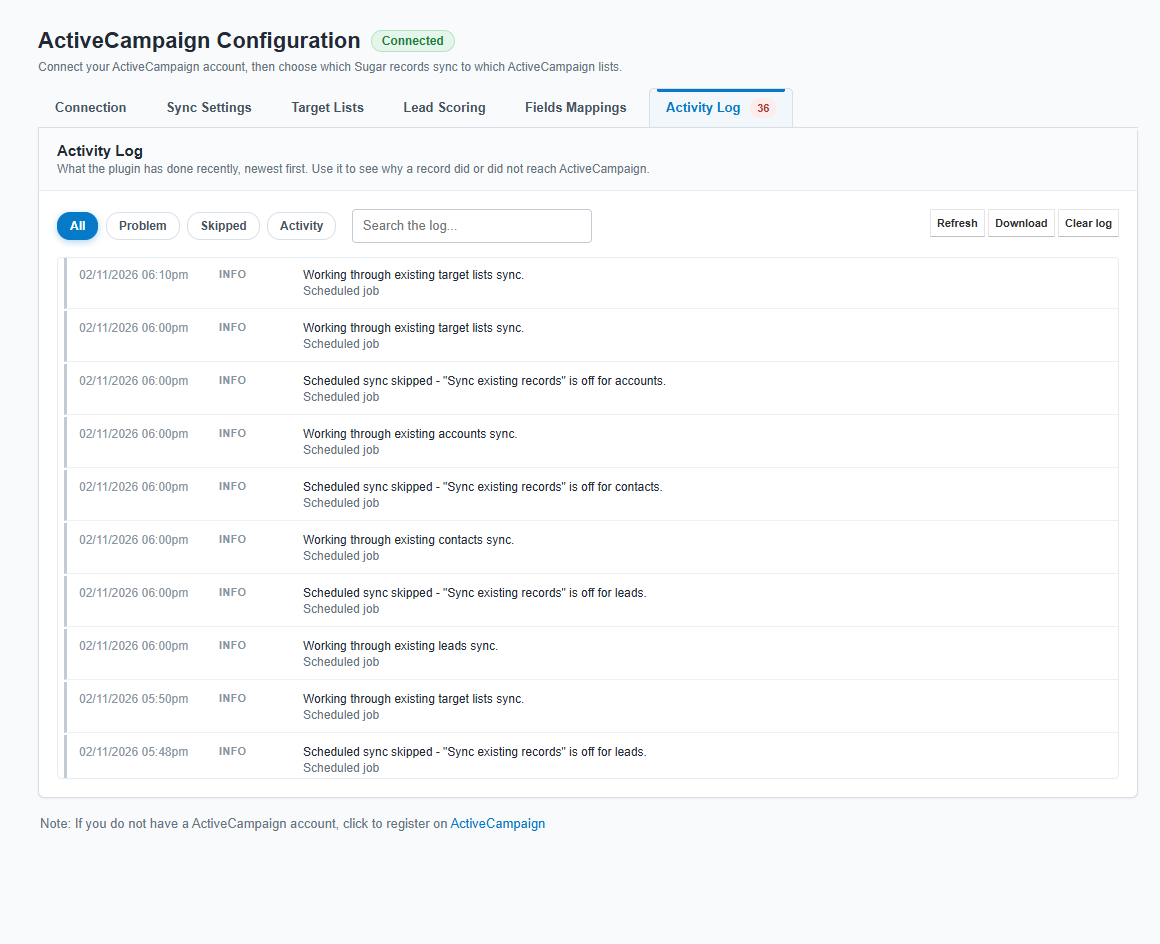
- Filter by All, Problem, Skipped or Activity, or type in Search the log. The number on the tab is the count of problems.
- Click an entry's Technical details to see the full message.
- Refresh loads new entries, Download saves the log as
ActiveCampaign.log, and Clear log deletes every entry.
12. Troubleshooting
Test Connection fails.
Copy the API URL and API Key again from Settings > Developer in ActiveCampaign. The API URL
looks like https://youraccount.api-us1.com, not the address of your ActiveCampaign login page.
The Activity Log shows "ActiveCampaign returned an error (HTTP 402)". ActiveCampaign refuses API calls because the account is not active, for example when a trial has ended. Reactivate the ActiveCampaign account; syncing continues on the next scheduler run.
The other tabs say "Connect to ActiveCampaign first". Authenticate on the Connection tab first.
Save Settings says it failed to create the webhook or the custom fields in ActiveCampaign. The API user needs permission to manage webhooks and custom fields in ActiveCampaign. Authenticate again and save. The message tells you which step failed, and the Activity Log has the details.
Existing records are not synced. Check that the module's scheduler is Active in Admin > Schedulers and that SugarAI's cron is running. The scheduler runs every 15 minutes and sends records in batches of 100.
A record was not sent to ActiveCampaign. Search for it in the Activity Log. The most common cause is a missing e-mail address, or a module with no ActiveCampaign list selected on Sync Settings.
Fields Mappings says "No ActiveCampaign fields could be loaded". Check the connection on the Connection tab, then reopen the tab.
No campaign activity appears in SugarAI.
ActiveCampaign must be able to reach your SugarAI site over HTTPS. Sites on a local network or behind
a firewall don't receive campaign updates. In ActiveCampaign, check Settings > Developer >
Webhooks for the webhook that ends in /rest/v11_4/TL_ActiveCampaigns/CampaignStats.
The ActiveCampaigns subpanel or AC Lead Score field is missing. Run Admin > Repair > Quick Repair and Rebuild, then refresh the browser.
13. Upgrading and uninstalling
Upgrading. Before you upgrade, note your API URL, your list choices and your field mappings. Install 3.2.8 over the old version in Module Loader. Then open Admin > ActiveCampaign Api Configuration, click Test Connection, check each tab and click Save Settings. Records already synced are not sent again.
Uninstalling. In Admin > Module Loader, click Uninstall next to Sugar_ActiveCampaigns and choose whether to keep the campaign activity data. Uninstalling removes the saved settings and field mappings. Your contacts and lists in ActiveCampaign are not changed.
Support
Contact Techloyce support with your SugarAI version, the add-on version (3.2.8) and the downloaded Activity Log.
For more info: Click Here | Partner Info