

ShapeMySugar is the module you need to convince your employees to use your CRM. Thanks to this module, you are able to customize many elements of your application so that your team can make it their own and identify your CRM as a new coworker. You will be surprised at the improvement of the user experience!
Guide : Shape my datas - Visual indicators
VISUAL INDICATORS
Based on dropdown field, the visual indicators allows you the advantage of being immediately identifiable and show easily the key elements.
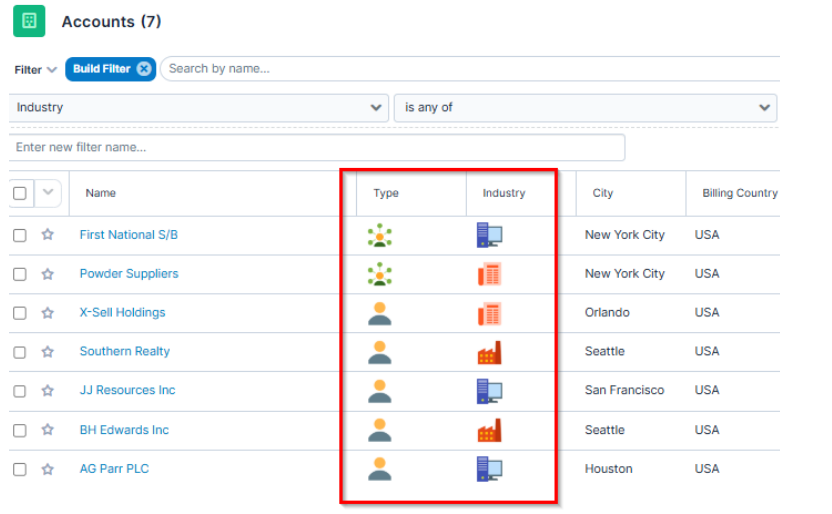
The principle consists in associating a drop-down list value with a differentiating visual:

By example with an Accounts list view on Type columns. And a custom one
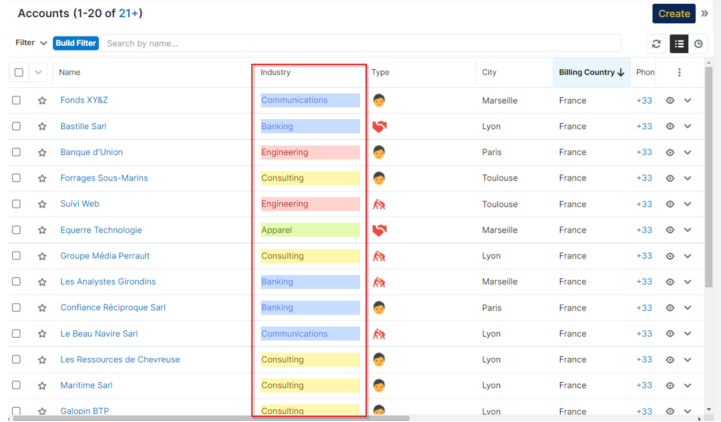
Example with a coloring of a drop-down list:
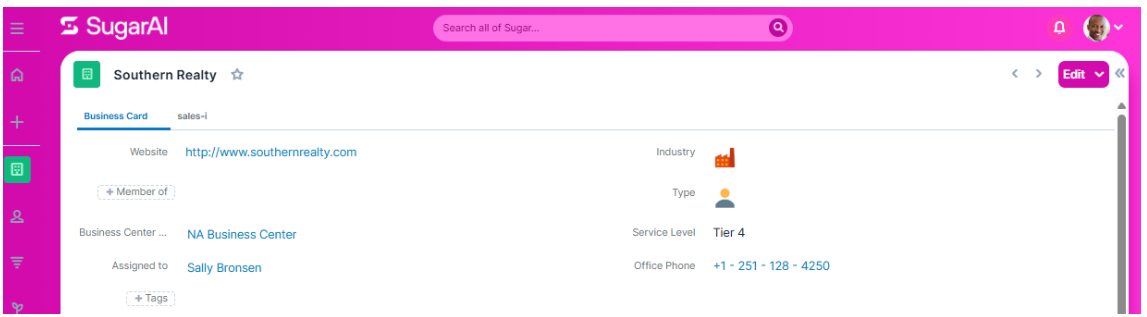
The display is also done on the record layout :
Important : The customizations need to modify CSS files, a removal of browser‘s caches may be necessary during changes in images (create / edit / delete).
SETTINGS SCREEN
In the Administration at the Studio level, go to the menu of the Shape my Sugar module named « Shape my Dropdown Lists ».


This list is used to administer all the visual customizations of the application's lists.
POSSIBLE CUSTOMIZATIONS Two display customizations are possible: in images or in colors.
Example with an image:

Example with a color:

ADDING A NEW VISUAL
The creation of a visual customization is done by creating an entry in the menu « dress up the drop-down lists ».
The values to be entered are:
- The module concerned
- The module field
- The value to which the display is applied
- The navigation language (different customizations possible)
- The type of display

Exemple :

BACKGROUND COLOR (CSS)
This option lets you choose a background color that will be displayed behind the list value. The choice is made from the list of those available.

Example :

Display :

Other possibilities


 Saving Comment...



