

The Kinamu Addresses for Sugar add-on is a practical and productive enhancement that allows you to assign any number of addresses to companies and individuals, beyond what SugarAI provides by default.
Admin Guide
Prequisites
To use the geocoding and autocomplete features of the add-on, a valid Google Maps API key is required, along with the associated Geocoding and Places services enabled.
Installation
Step 1 - Back Up
Back up your entire CRM system (files and database).
Step 2 - Installation
To install the KINAMU Address Enhancement Module follow these steps:
- Navigate to the Administration page and locate the "Module Loader" section.
- Select the zipped module file and proceed by initiating the upload process.
- Once the upload is finalized, proceed by selecting the designated "install" button to initiate the installation.
Step 3 - Repair & Rebuild
Once the installation of the KINAMU Address Enahncement Module is completed successfully, return to the Administration page and locate the "Repair" option. Proceed by performing a rebuild and repair process through the selection of "Quick Repair and Rebuild".
Step 4 - Licence Activation
After installing the Address Enahncement Module, a new section appears on the SugarCRM admin panel, called "Kinamu Address Enhancement". It contains links to the three main modules and the license configuration module of the addon.

After clicking the above function, the Licence Management Module shows up and asks for a valid licence code. To perform the licence check, enter (or paste) a valid licence code and click the Validate button.
In case the licence check was successful and the licence code is valid, the form seems like this:

In case the licence check was successful but the licence code is valid, the form seems like this:

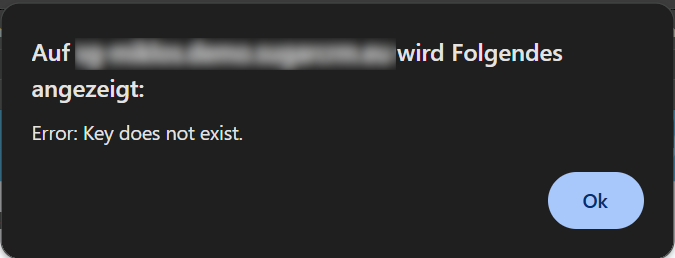
The Address Enahncement modules can be reached without a valid licence code but in case of data creation attempts, error messages appear.
Step 5 - Setting Up Geocoding Service API Key (Optional)
If you would like to use the module's geocoding and address autocomplete features, you need to configure the appropriate API key and the parameters for bulk requests. This can be done in the "API configuration for Kinamu Addresses" section.

 Saving Comment...