

Securely sign and manage documents online from any device with the most widely used e-signature solution. DocuSign® for Sugar 7 helps sales users close business completely, and quickly, in the cloud.
User Guide
Sending Documents for Signature
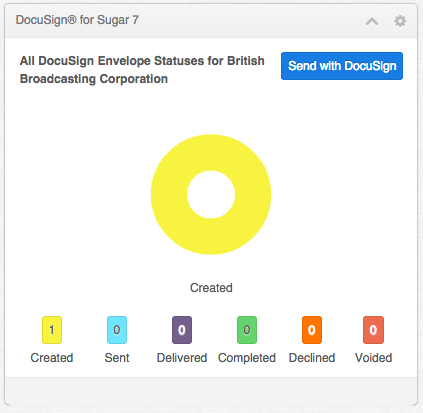
With DocuSign for Sugar 7, you can add the DocuSign dashlet to any object that supports the dashlet functionality (including custom objects). See FAQs on how to add the DocuSign dashlet to an object.
The DocuSign dashlet is included by default on the Account, Contact, Opportunity, and Lead objects.
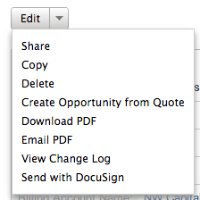
DocuSign support for the Quote object is also available through the "Edit" menu on the object.
1. Select an Object
- Select an object and open the detail page for the object you want to send documents from.
2. Send with DocuSign
- In the DocuSign dashlet in the dashboard section of the object, click Send with DocuSign. If you are on a Quotes object, the Send with DocuSign button is included in the Edit menu. A modal overlay opens and a DocuSign envelope is created. Documents included in the Documents section are automatically included in the envelope for all objects except Quotes. Additional information is added to the envelope depending on the object type:
- Opportunity: Contact(s) associated with the object are added as envelope recipient(s)
- Account: Contact(s) associated with the object are pulled in as envelope recipient(s)
- Contact: Contact is pulled in as the envelope recipient
- Lead: Lead is pulled in as the envelope recipient
- Quote: Billing contact is pulled in as the envelope recipient, and a PDF of the quote content is created and used as the document in the envelope; a note is created in the History section of the quote
3. Tag and Send Your Documents
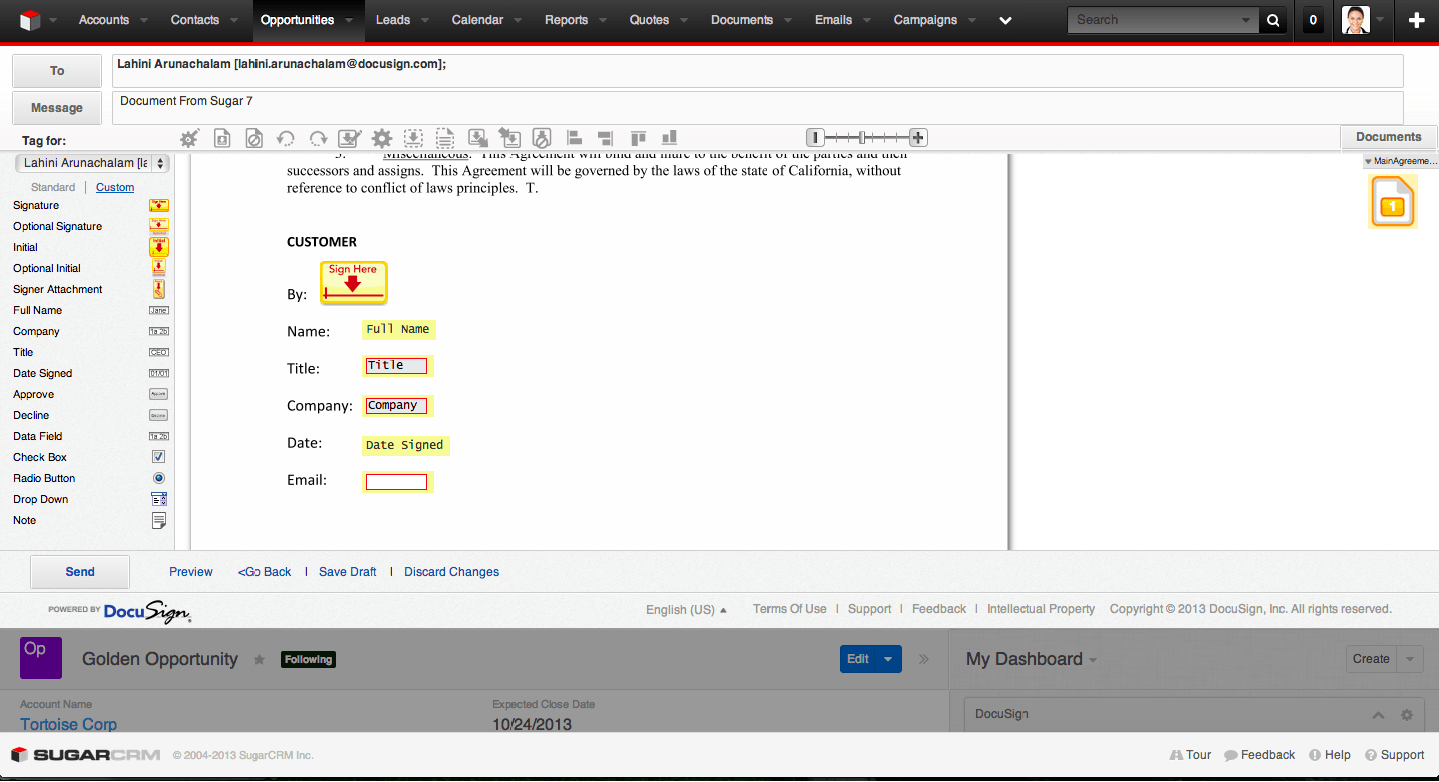
- Drag and drop DocuSign tags from the left-hand palette onto your document. You can modify the envelope by clicking the following:
- To - to add, remove or modify recipients
- Message - to change the e-mail subject and message
- Documents - to add or remove the documents from the envelope Refer to the Quick Start – Sending a Document or DocuSign Service User Guide on the DocuSign website for more details about completing your envelope.
- Click Preview to preview how your recipient will see the tags.
- Click Send to send the document for signing.
The DocuSign overlay closes and the envelope is sent.
4. Done!
You have successfully sent documents attached to an object out for signature using DocuSign.
You can easily track the status of the envelope from the DocuSign dashlet itself. The dashlet displays a chart view of all envelope statuses for that object.
You can also view the envelope statuses in a table view by clicking on the chart displayed in the DocuSign dashlet.
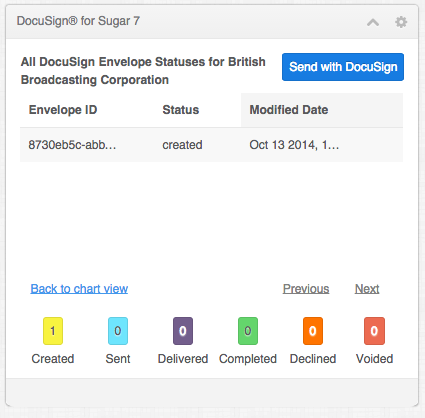
When the envelope is completed, the signed documents are attached to the object as a PDF. You can access this PDF by clicking the Completed link in the table view of the DocuSign dashlet.
See FAQs on how to view the DocuSign envelope statuses on a Quote object.
Refer to the DocuSign Service User Guide on the DocuSign how-to guides for more information about sending envelopes.
 Saving Comment...


