

Securely sign and manage documents online from any device with the most widely used e-signature solution. DocuSign® for Sugar 7 helps sales users close business completely, and quickly, in the cloud.
FAQs
What are "envelopes"?
- An envelope is an electronic container used to send one or more documents for signature with the DocuSign system. Envelopes can contain any number of pages or documents, and can be sent to multiple recipients.
How many envelopes can I send from a free account?
- A free trial DocuSign account set up from Sugar can send 50 envelopes for all users in the account.
How will I know when my trial account is running low on envelopes?
- The DocuSign system provides a warning when your free account is running low on envelopes.
I'm not the administrator for my Sugar instance; can I still install DocuSign for Sugar 7?
- No, the module can only be installed by administrators. All you need to do is download the zip from your downloads here and send the zip and a link to the install guide here to your Sugar administrator.
Do I have to give the other SugarCRM users my DocuSign credential information so they can send with DocuSign?
No. If you created a new account, it is automatically setup to allow users in your account to send with DocuSign. If you have a DocuSign account, enable the Account-Wide Rights and Send on Behalf of Rights (API) features for your account. This allows the other users in your account to send with DocuSign.
Additionally, if your account uses the Password Strength setting Custom, you must set the Password Questions Required option to 0. You can check your DocuSign Password Strength setting by going to Preferences > Features and, under the Manage Account heading, clicking Password Strength.
Not all of my Sugar users have DocuSign accounts. Can they still use DocuSign for Sugar 7?
Yes, as long as you have seats available in your DocuSign account. When a Sugar user clicks Send with DocuSign, the system checks to see if that user exists in DocuSign. (In this case a user is defined as a unique username/email combination.) There are three possible results:
- If the user does not exist as a member of the DocuSign account the system administrator associated with the Sugar instance, and does not have an existing DocuSign account, DocuSign creates a new user with that user's username and email combination and adds that user as a member of the DocuSign account.
- If the user does not exist as a member of the DocuSign account the system administrator associated with the Sugar instance, but does have an existing DocuSign account, the user is asked to enter a new username to go along with the new account. DocuSign then creates a new user with that user's username and email combination and adds that user as a member of the DocuSign account.
- If the user exists in the DocuSign system and exists as a member of the account associated with the Sugar instance, DocuSign uses that information to send the envelope.
How do I change the DocuSign environment that my DocuSign for Sugar 7 module is pointing to?
- On the Administration Home Page, scroll to the lower portion of the page and click DocuSign Settings.
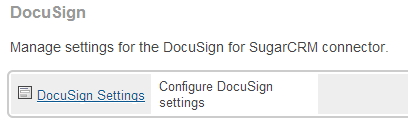
- Select the desired DocuSign server from the Set DocuSign API Environment drop down. Note that this action also removes the system-wide login. Click Save to save the changes.
How do I add the DocuSign dashlet to an object?
If the Sugar 7 dashlet functionality is available on an object, create a new dashboard or go to an existing dashboard. Click Edit on the dashboard and click Add a Row and then Add a Dashlet. The Add a Dashlet list appears:
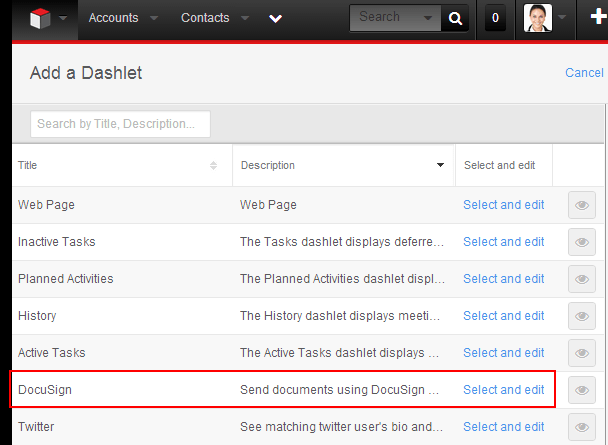
Find the DocuSign dashlet and click Select and edit, and then click Save. The DocuSign dashlet should now appear on your dashboard.
Which objects have the DocuSign dashlet displayed on a dashboard by default?
When a Sugar administrator installs the DocuSign for Sugar 7 module, all users see the DocuSign dashlet on the Account, Contact, Lead, and Opportunity objects under the DocuSign dashboard.
Note: Any users created after the admin installs the DocuSign module will have to manually add the DocuSign dashlet to these objects.
What are the differences between the DocuSign dashlet I see on the Home page, on an object's list view, and on an individual object?
- The DocuSign dashlet can appear in a variety of places within Sugar 7:
- DocuSign Home Page dashlet - displays the DocuSign envelope statuses for the envelopes you have sent across all objects
- DocuSign dashlet on an object's list view - (e.g. when the user clicks the "Leads" tab) displays the DocuSign envelope statuses for the envelopes you have sent across all objects of that type (e.g. all leads)
- DocuSign dashlet on an individual object's dashboard - displays the DocuSign envelope statuses for the envelopes any user has sent from that particular object. You can find the Send with DocuSign button only on this view of the dashlet.
How do I view my DocuSign envelope statuses for a Quote object?
- Quote objects do not yet include the dashlet functionality. You can view the statuses of envelopes sent from a Quote by scrolling down to the DocuSign Statuses list view at the bottom of the record.
How are often are my DocuSign statuses updated?
- If you are a Sugar 7 on-demand customer, the DocuSign statuses are refreshed instantaneously. If you are a Sugar 7 on-site customer, you must setup a scheduled job to retrieve DocuSign statuses. In this job, you can specify how often you would like the statuses to update.
- To setup the DocuSign scheduled job:
- On the navigation bar, click the User menu and select Admin to go to the Administration Home Page.
- Under System, click Scheduler. The Schedulers list appears.
- On the navigation bar, under Sugar Scheduler, select Create Scheduler.
- In the Job Name field enter a scheduler name; in the Job drop-down select DocuSign Sweeper.
- Choose the desired refresh interval and click Save.
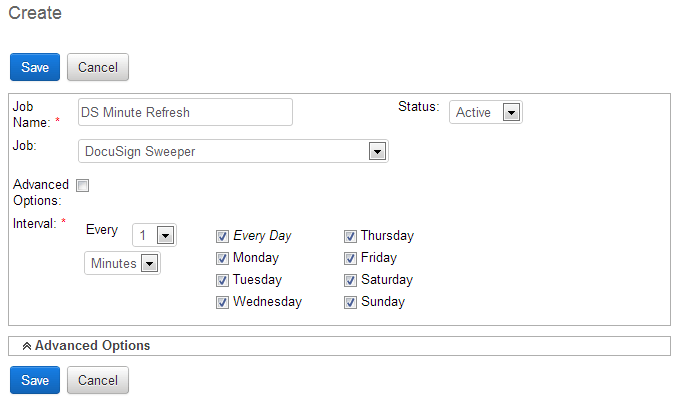
- Select Sugar Scheduler > Schedulers to return to the list of Schedulers. Below the list, you should see the commands needed to add to a batch file used to run Sugar Schedulers.
- To setup up a batch file in order to run scheduled jobs: a. You must be on the server that SugarCRM is running on. b. Open command prompt and navigate to the sugarcrm directory. c. Run the job sudo php -f cron.php > /dev/null 2>&1
I am having trouble sending a Quote for signature from Safari 6.0. What should I do?
- Go into Preferences in Safari. Click Privacy and set Block Cookies: Never.
I have three documents attached to an object, but I only want to send two of them. How do I remove the other document?
- From the DocuSign dashlet, click Send with DocuSign. In the new browser window, click Documents, and then click the remove icon for the document you do not want to send.
I have custom Quote templates in Sugar; which templates do DocuSign envelopes use?
- DocuSign is set to use the default template.
How do I uninstall DocuSign for Sugar 7?
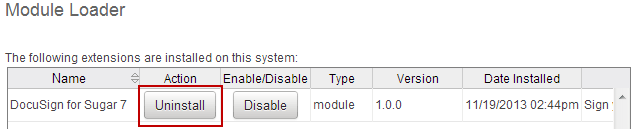
To uninstall DocuSign for Sugar 7: a. On the Administration Home Page, under Developer Tools, click Module Loader. b. Locate DocuSign for Sugar 7 in the list of installed extensions and click Uninstall.
I love this! How do I write a review for DocuSign for Sugar 7?
- Great! You can do so by following this link. We are always happy to receive feedback as it helps us and other users.
For More Information or Assistance
For more information or assistance, visit DocuSign Support, the DocuSign Community, docusign.com, or contact DocuSign Support.
 Saving Comment...