

AdobeSign for Sugar allows you to send documents or contracts for electronic signature using AdobeSign from within SugarCRM. Track your documents anytime, anywhere within minutes. Supports the use of PDF templates or AdobeSign templates to send documents to Sugar accounts, contacts, or leads for e-signature.
AdobeSign and SugarCRM
Are you dealing with the hassle of sending physical documents for signature?
Wish that you could have those documents signed within minutes instead of days?
Want to know whether the other party even received your documents?
Then SugarAdobeSign is the solution to all of your document signature problems.
How it Works
With this add-on you can send uploaded files, Sugar PDF templates and Adobe Sign library templates for signature straight from an Account, Contact or Lead in your CRM. Everything happens in one Send via Adobe Sign panel, and you can track each document's status throughout the signature process.
Overview Video
Watch on YouTube: Adobe Sign for SugarCRM: Install, Connect & Send Documents for Signature
Getting Started
- Install: in Admin, open Module Loader, upload the Adobe Sign package zip, then click Install and Commit.
- Activate your license: in Admin, under Adobe Sign Configuration, open License Validation, paste the license key from your SugarOutfitters purchase and click Validate.
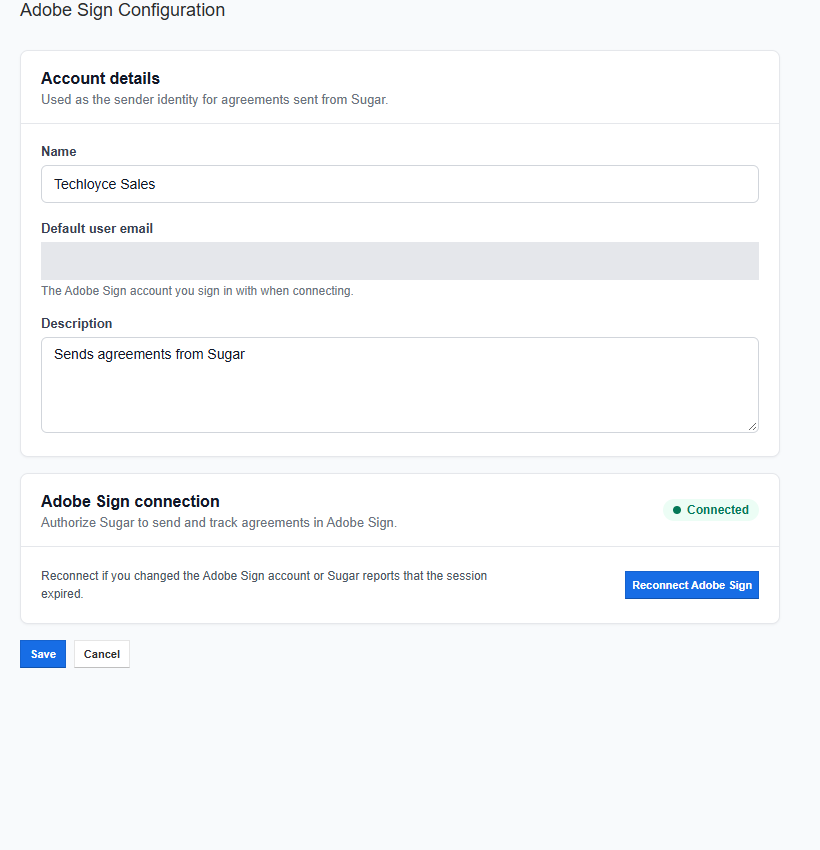
- Connect Adobe Sign: in Admin, open Adobe Sign Api Configuration, enter a name and the email of your Adobe Sign account, and click Connect Adobe Sign. Sign in to Adobe Acrobat Sign and click Allow Access. You are returned to Sugar and the status shows Connected.
Sending a Document for Signature
Open any Account, Contact or Lead record. In the record's actions menu, choose Send via Adobe Sign. A panel opens where you choose the document, add the details and set the recipients.
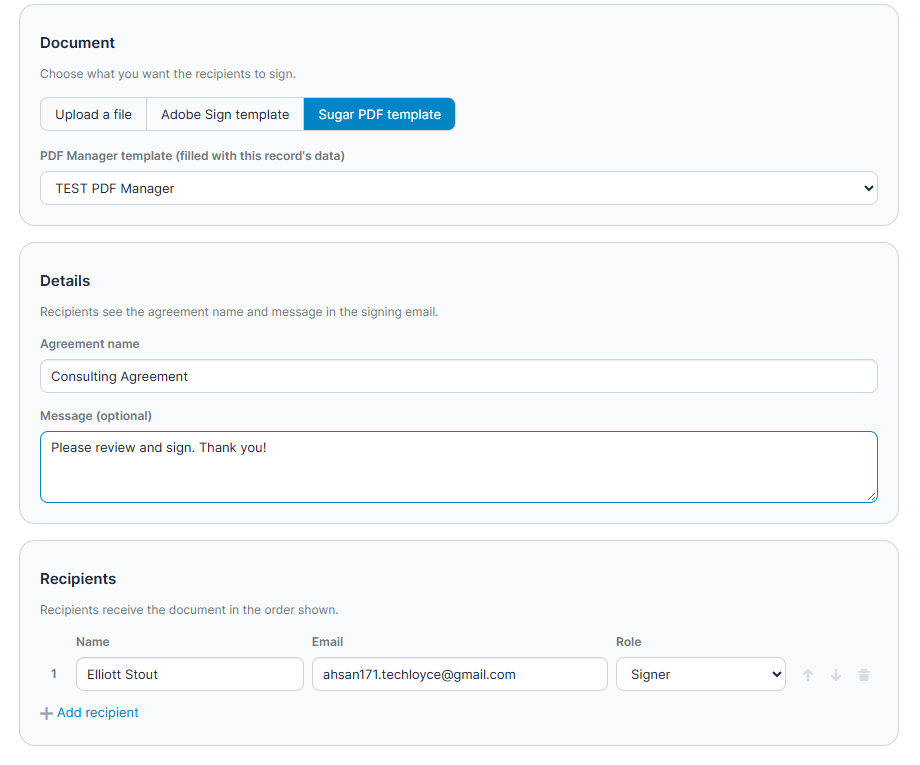
Under Document, choose one of three sources:
- Upload a file: drop a file into the panel or click to browse. Supported files are PDF, Word, Excel, PowerPoint, RTF, text and images (PNG, JPG), up to 10 MB.
- Adobe Sign template: pick a template from your Adobe Sign library. The list is loaded from your Adobe Sign account.
- Sugar PDF template: pick a Sugar PDF Manager template for the record's module. It is filled with the record's data before it is sent.
Under Details, enter an agreement name and an optional message. Recipients see both in the signing email.
Recipients
- The record's name and primary email address are filled in as the first recipient.
- Click Add recipient to add more recipients, and the trash icon to remove one.
- Use the up and down arrows to set the signing order. For example, Signer 1 receives the document first; once Signer 1 has signed, it goes to Signer 2, and so on.
- Choose a role for each recipient: Signer, Approver, Acceptor, Certified recipient, Form filler, or one of the Delegate roles.
Click Send for signature. The document is sent through Adobe Sign, the panel closes, and the agreement appears in the record's Adobe Sign subpanel with the status OUT FOR SIGNATURE.

See Statuses of All Docs
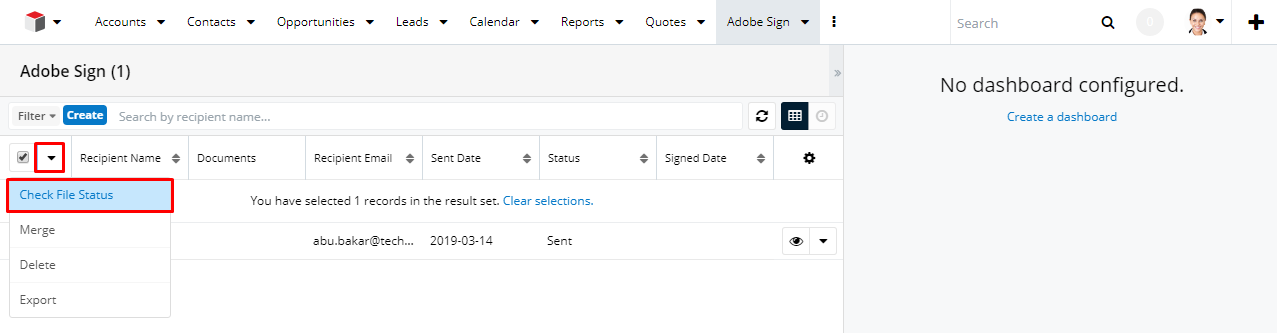
The Adobe Sign module lists the documents you sent along with their statuses. Statuses are updated in two ways:
- Manually: in the Adobe Sign list view, select the documents and choose Check File Status from the actions menu. Their status is updated, for example to sent, delivered or signed.
- Automatically: the add-on creates a scheduler job called Adobe Sign - Document Status Update. You can find it in Admin under Schedulers. It runs every 15 minutes by default, and you can change the interval.
SugarCloud & On-Premise Supported
This add-on is compatible with SugarCloud and Sugar on-premise deployments, and supports Sugar 12, 13, 14, 25 and 26.
For More Info: Click Here Partner Info


