A bi-directional file sync between Alfresco and SugarCRM (self hosted or On Demand).
Alfresco and SugarCRM
Do you save your files in Alfresco?
Do you want files added in Sugar to be saved to Alfresco automatically, and files added in Alfresco to show up on the right Account in Sugar?
Then Alfresco for Sugar is for you.
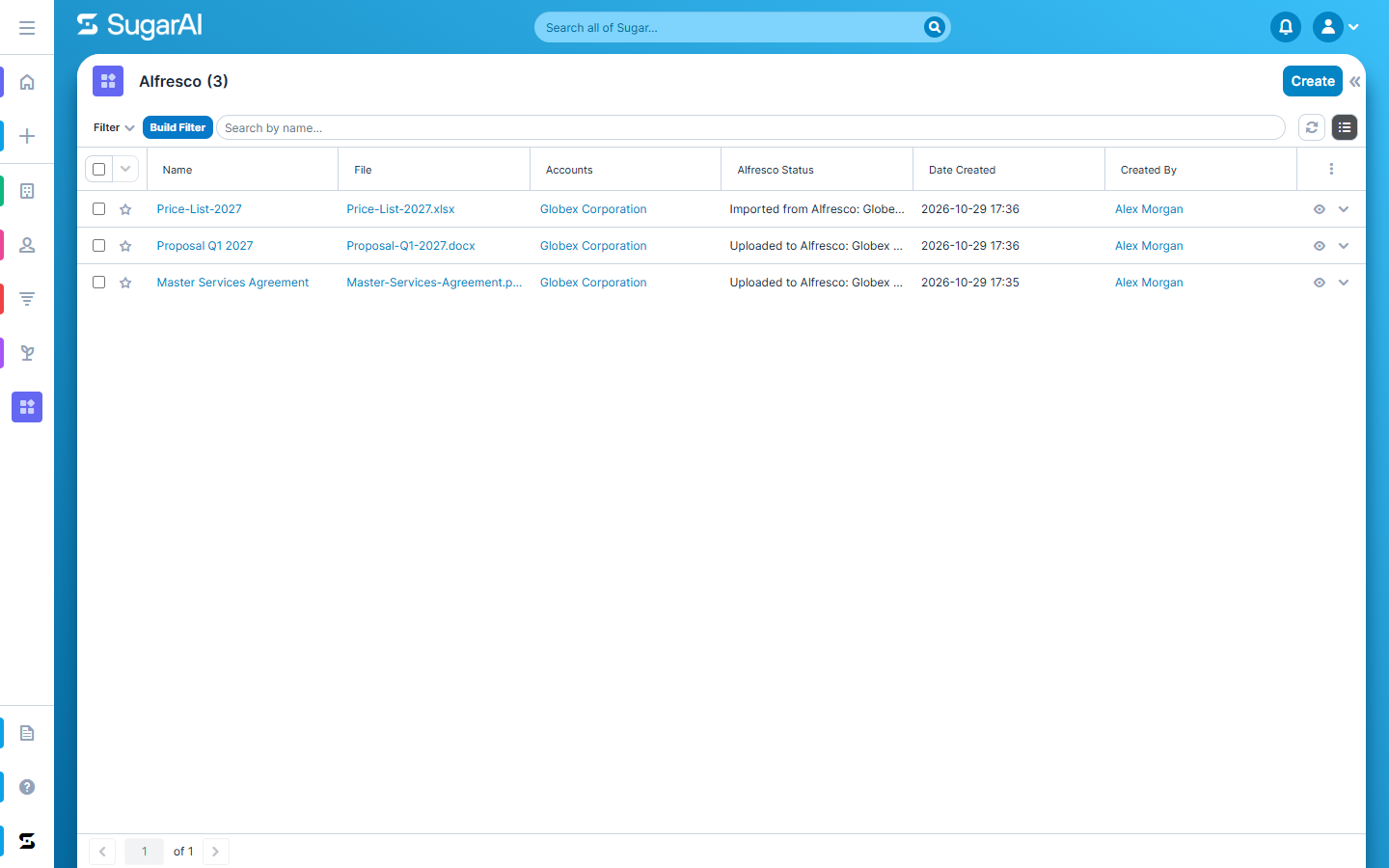
Add a file to an Account in Sugar and it is uploaded to Alfresco, into a folder named after the Account. Add a file to that folder in Alfresco, and Sync from Alfresco brings it into Sugar. Every file shows whether it was uploaded and where it is stored.
Watch the video
See the setup and everyday use in under two minutes.
Features
- File uploads: files added in the Alfresco subpanel of an Account are uploaded to Alfresco when you save
- File downloads: download any file from its record in Sugar
- Two-way sync: Sync from Alfresco imports files added to the Account's folder in Alfresco
- One folder per Account: created automatically inside a root folder you choose, also inside a Share site
- Versions: replacing a file in Sugar saves a new version in Alfresco
- Alfresco Status: see on every file where it is stored, or why an upload did not work
- Secure: login required for every action, admin-only settings, encrypted Alfresco password
What's new in 2.0
- Supports SugarCRM 14, 25 and 26 and Alfresco 5.2 to 23.x (public REST API v1)
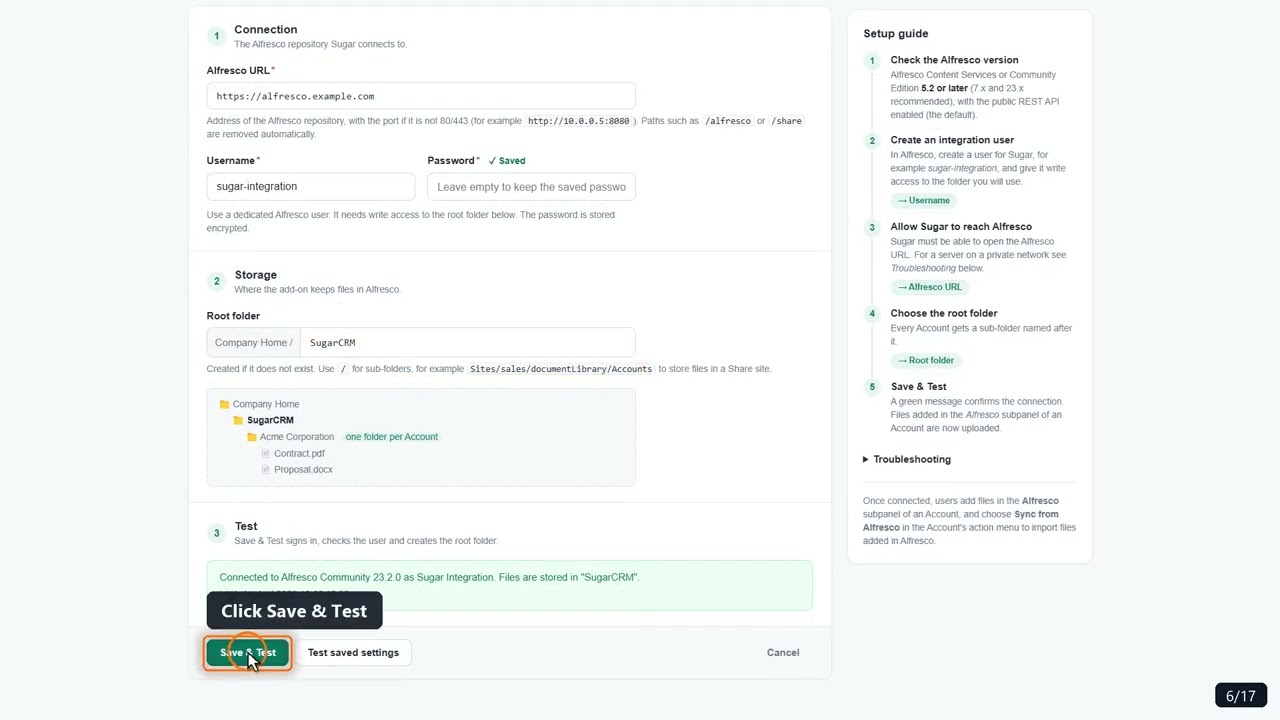
- New Alfresco Settings screen with a setup guide, connection status and Save & Test
- Sync from Alfresco in the Account's action menu; the subpanel refreshes automatically
- Saving a record no longer fails when Alfresco is unavailable
- Replacing a file creates a new version instead of a second copy
Version Support
| SugarCRM | 14.x, 25.x and 26.x (Professional, Corporate, Enterprise, Ultimate), on-premise |
| Alfresco | Alfresco Content Services or Community Edition 5.2 and later (7.x and 23.x recommended) |
| Connection | HTTP or HTTPS, any port |
How it Works
1. Install and configure
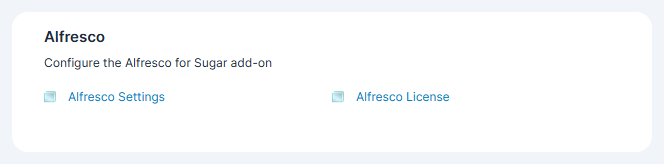
After installing the package in Admin > Module Loader, the add-on adds an Alfresco section to the Admin panel.
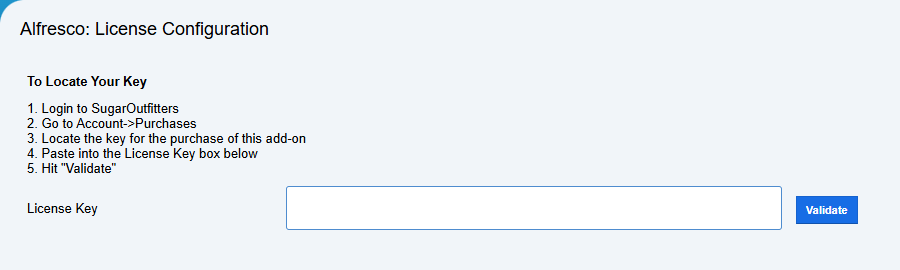
Open Alfresco License, paste your license key and click Validate.
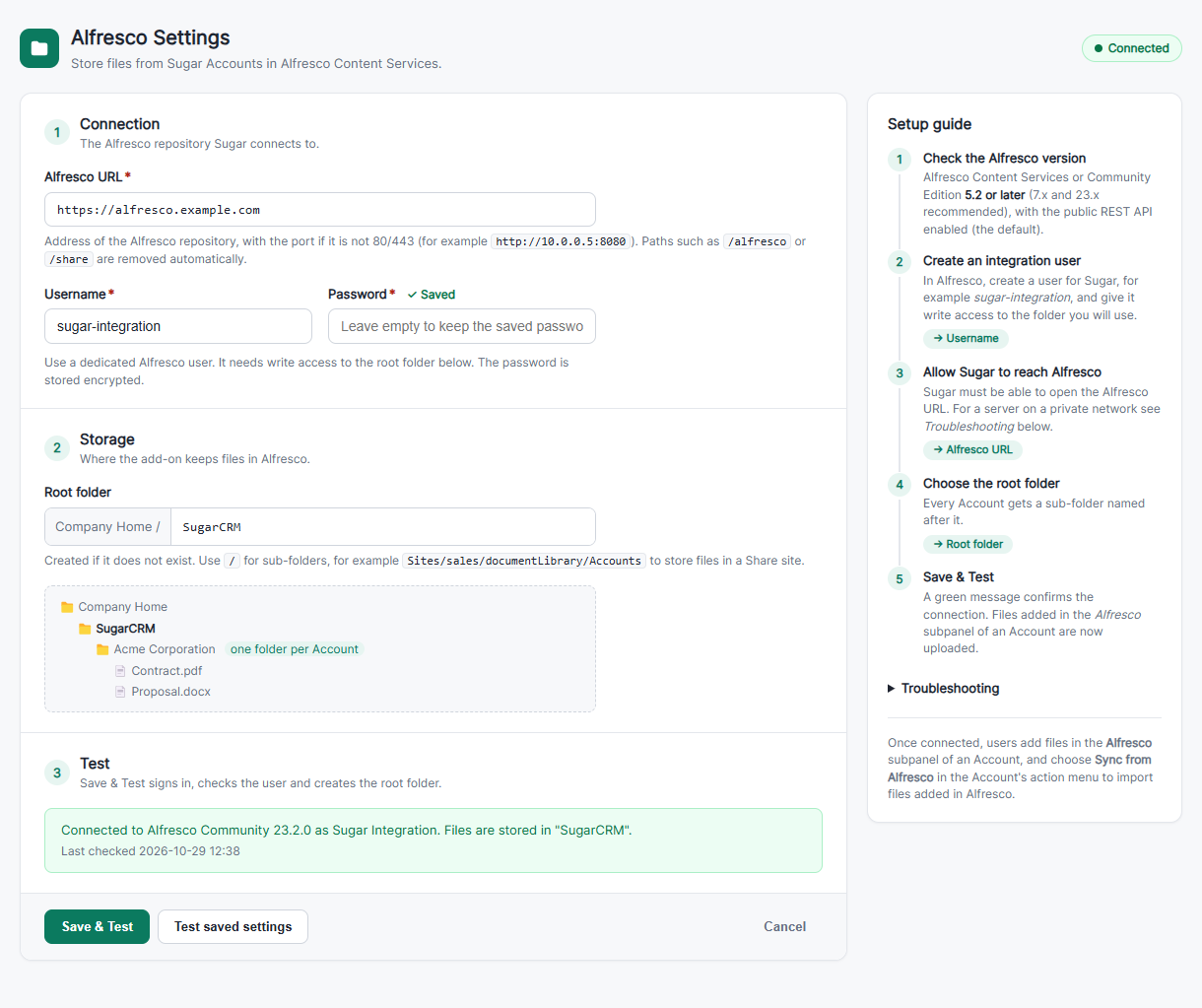
Open Alfresco Settings, enter the Alfresco URL, the integration user and the root folder, and click Save & Test. A green message confirms the connection.
2. Upload a file to Alfresco
Open an Account, or create one with Create.
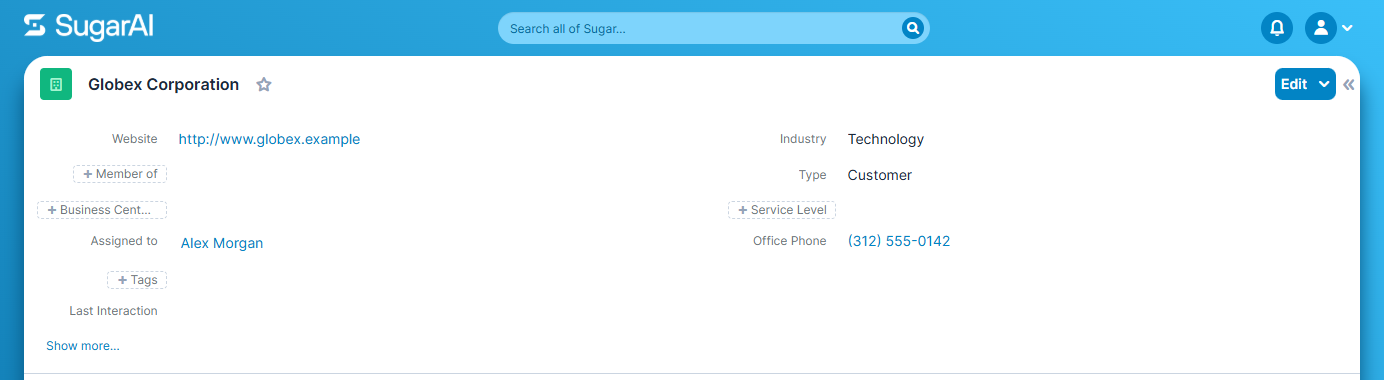
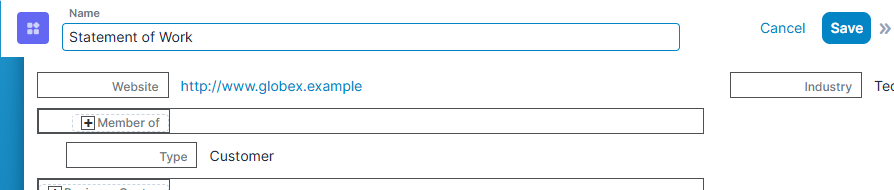
In the Alfresco subpanel, click +, enter a name, choose the file and click Save. The Account is filled in for you.
The file is uploaded to Company Home / SugarCRM / in Alfresco, and the subpanel shows its Alfresco Status.

Open a file to see its Account, the Alfresco folder and when it was uploaded.

3. Bring files from Alfresco into Sugar
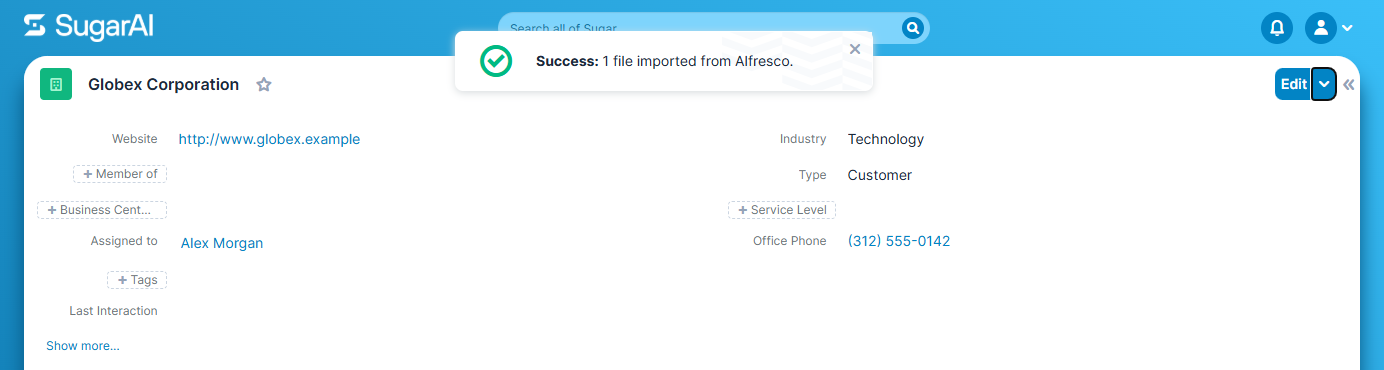
Upload files to the Account's folder in Alfresco. In Sugar, open the Account, click the arrow next to Edit and choose Sync from Alfresco.
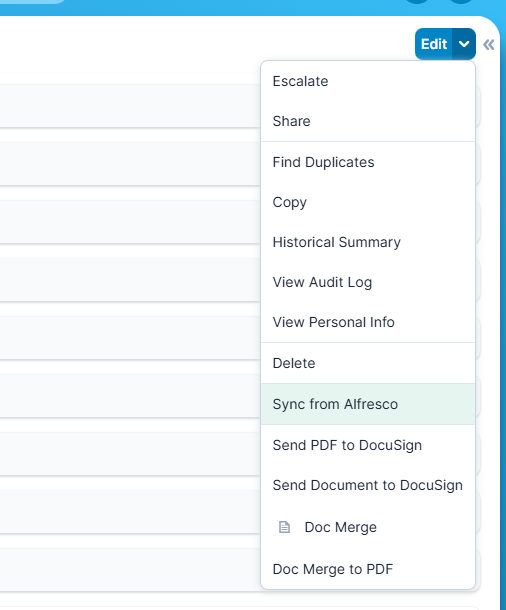
A message shows how many files were imported, and the subpanel refreshes. Files already in Sugar are skipped.
4. All files in one place
The Alfresco module lists every file across all Accounts.